
|
Size: 9056
Comment:
|
← Revision 17 as of 2016-01-11 23:47:29 ⇥
Size: 9308
Comment:
|
| Deletions are marked like this. | Additions are marked like this. |
| Line 2: | Line 2: |
| == 1, Indroduction. == A simplified explanation of how the original program work was show in following diagram, |
== 1, Introduction. == A simplified explanation of how the original program works is shown in the following diagram, |
| Line 7: | Line 7: |
| As shown in the diagram, we create a edit field for field 1, then after the user finish editing it we remove it. In other words, at any instance only one edit field was presented, the other field which look like a edit field is actually a label which look like a edit field. So that is why clicking on the other fields will not work. ---- To be able to have a clickable program , we must have every edit field present the same time. Following is a simplified version of what is going on when the program was converted. |
As shown in the diagram, we create an edit field for field 1, then after the user finish editing it we remove it. In other words, at any instance only one edit field was presented. Each of the other fields which may look like an edit field is actually a label which looks like an edit field. So that is why clicking on the other fields will not work. ---- To be able to have a clickable program , we must have every edit field presented at the same time. Following is a simplified version of what is going on when the program was converted. |
| Line 14: | Line 14: |
| The main different between the old way and the new way, is how we process the field list. As explain above, the old way put a field immediately on the screen when going through the field list. The new way instead of showing it straight the way, we allocate the field to a parameter dialogue box which will be shown once every field was added to the box. When we show the dialogue box, it will contain all the fields. So the user can click amount the fields. ---- == 2, Overview of the convertion. == |
The main difference between the old way and the new way, is how we process the field list. As explain above, the old way put a field immediately on the screen when going through the field list. The new way instead of showing it straight the way, we allocate the field to a parameter dialogue box which will be shown once every field was added to the box. When we show the dialogue box, it will contain all the fields. So the user can click any of the fields. ---- == 2, Overview of the conversion. == |
| Line 24: | Line 24: |
| to convert any of these program invlove the following step 1. declear the program use the clickable dialogue. |
to convert any of these program invlove the following steps: 1. declare the program to use the clickable dialogue. |
| Line 31: | Line 31: |
| == 3, declear using clickable dialogue. == since we cannot convert all the program in the same time so we need a way to define which program is clickable and which program is not. To declear a program is clickable simply set the global variable "guiparamready" to YES in the spclinit() function, the spclinit() function get run in the very beginning of the run time. following is an example |
== 3, declare using clickable dialogue. == Since we cannot convert the programs all at once, we need a way to define which program is clickable and which program is not. To declare that a program is clickable, simply set the global variable "guiparamready" to YES in the spclinit() function, the spclinit() function get run in the very beginning of the run time. Following is an example |
| Line 99: | Line 99: |
| * remove all the SPECIAL flags and special functions is exist | * remove all the SPECIAL flags and special functions if there are any |
| Line 181: | Line 181: |
| GUIP_CHKSHW YES -- we will show the fields. | GUIP_CHKSHW YES -- we will show the fields. |
| Line 208: | Line 210: |
| mkdir -p convertion/old/binx11/ mkdir -p convertion/new/binx11/ mkdir -p convertion/old/sources/ mkdir -p convertion/new/sources/ //retrieve non converted sources files and compile under ~/convertion/old/sources/ //copy non converted sources files to ~/convertion/new/sources/ do the change and compile there. |
mkdir -p conversion/old/binx11/ mkdir -p conversion/new/binx11/ mkdir -p conversion/old/sources/ mkdir -p conversion/new/sources/ //retrieve non converted sources files and compile under ~/conversion/old/sources/ //copy non converted sources files to ~/conversion/new/sources/ do the change and compile there. |
| Line 216: | Line 218: |
| example for retrieving and put back sorce codes | example for retrieving and putting back source codes |
| Line 236: | Line 238: |
| exercise program drcont has been converted to clickable , retrieve, compile and compare , see if can under stand the changes. |
== 7, tutorials and example. == exercise program drcont and cocont has been converted to clickable , retrieve, compile and compare , see if you can understand the changes. drcont.c is converted in version 14.7 cocont.c is converted in version 14.3 |
| Line 241: | Line 248: |
| cd ~/convertion/old/sources/ | cd ~/conversion/old/sources/ |
| Line 244: | Line 251: |
| //compile | //compile |
| Line 246: | Line 253: |
| //run | //run |
| Line 258: | Line 265: |
| cacont.c, dccont.c and crcont.c have not been converted. Try to convert them. |
Converting Input screen from non-clickable to clickable
1, Introduction.
A simplified explanation of how the original program works is shown in the following diagram,
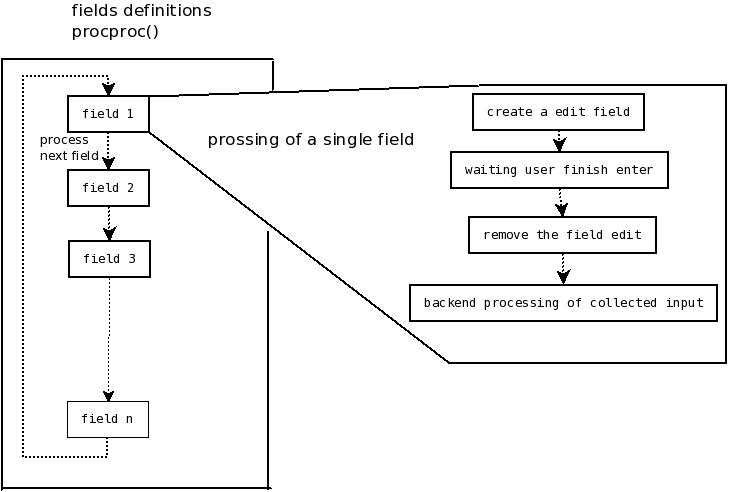
As shown in the diagram, we create an edit field for field 1, then after the user finish editing it we remove it. In other words, at any instance only one edit field was presented. Each of the other fields which may look like an edit field is actually a label which looks like an edit field. So that is why clicking on the other fields will not work.
To be able to have a clickable program , we must have every edit field presented at the same time. Following is a simplified version of what is going on when the program was converted.
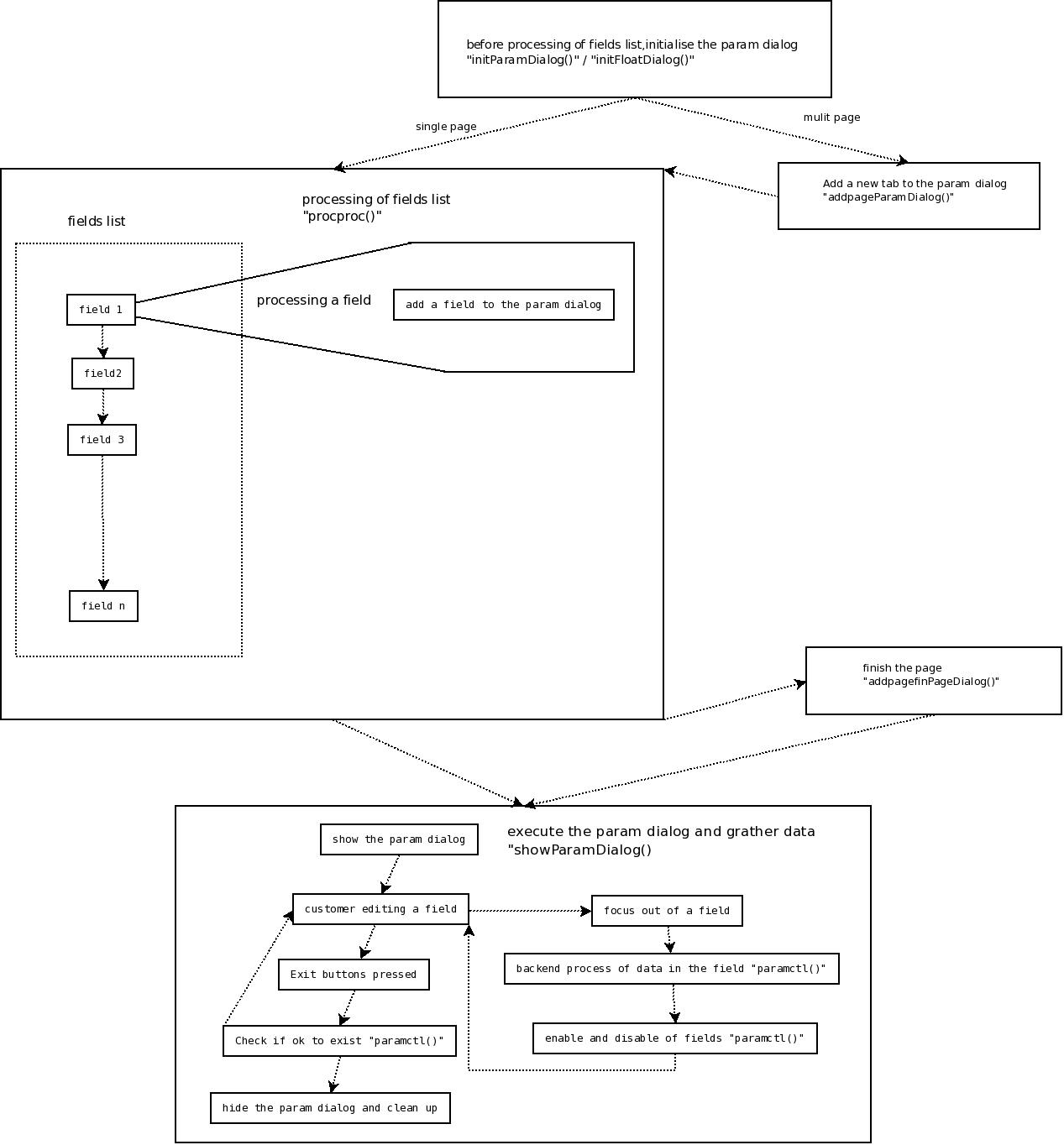
The main difference between the old way and the new way, is how we process the field list. As explain above, the old way put a field immediately on the screen when going through the field list. The new way instead of showing it straight the way, we allocate the field to a parameter dialogue box which will be shown once every field was added to the box. When we show the dialogue box, it will contain all the fields. So the user can click any of the fields.
2, Overview of the conversion.
currently the following types of program can be converted.
- lstr
- rep
- cont
to convert any of these program invlove the following steps:
- declare the program to use the clickable dialogue.
- convert the s_flddes / s_outflddes lists
- implement the "paramctl()" function.
3, declare using clickable dialogue.
Since we cannot convert the programs all at once, we need a way to define which program is clickable and which program is not.
To declare that a program is clickable, simply set the global variable "guiparamready" to YES in the spclinit() function, the spclinit() function get run in the very beginning of the run time.
Following is an example
spclinit()
    {
    IMPORT BOOL guiparamready;
    guiparamready = YES;
    }
4, convert the s_flddes lists
converting rep and lstr programs
in rep and lstr type of program , we normally have one page for inputs, if more then one list exist need to combine them into one.
converting cont programs
in cont programs we will have multiple pages, due to historical reason each page will have 2 fields lists one for labels and one for input fields.
following are the definition of a nonclickable program field lists
GLOBAL  COUNT   nscrn = 2;//number of pages
GLOBAL  struct  s_outflddes *scrnarray[] = {NULL, scrn, scrn2};//labels list for each page
GLOBAL  struct  s_flddes    *procarray[] = {NULL, flds, flds2};//inputs list for each page
GLOBAL  struct  s_outflddes scrn[] =
    {
    {0,COMPUTE,COMPARE,0,"",&Debug,NORECBUF,INTEGER,INTEGER|CONSTANT,YES},
    {IF_EQUAL,OUTPUT, 4,OCOL1,"58t.'auto-allocate unallocated amounts when posting trans'' :'"},
    {0,OUTPUT, LINE+1,OCOL1,"58t.'default period - week/month (W/M)'' :'"},
    {0,OUTPUT, LINE+1,OCOL1,"58t.'use private customer group'' :'"},
    {0,OUTPUT, LINE+1,OCOL1,"58t.'customer lookups by contact details'' :'"},
    {0,NULL},
    } ;
GLOBAL  struct  s_flddes    flds[] =
    {
    {0,COMPUTE,COMPARE,0,"",&Debug,NORECBUF,INTEGER,INTEGER|CONSTANT,YES},
    {IF_EQUAL,EDIT,4 ,ICOL1,"yn", OFFSET(s_drcont, dissct),      CONTROL, CHAR},
    {0,EDIT|SPECIAL,LINE+1,ICOL1,"mw", OFFSET(s_drcont, defper),      CONTROL, CHAR,0,0,0,0,speclfunc},
    {0,EDIT,LINE+1,ICOL1,"yn", OFFSET(s_drcont, priv_grp),    CONTROL, CHAR},
    {0,EDIT,LINE+1,ICOL1,"yn", OFFSET(s_drcont, use_contact),  CONTROL, CHAR},
    {0,NULL},
    } ;
GLOBAL  struct  s_outflddes scrn[] =
    {
    //something
    .......
    .......
    } ;
GLOBAL  struct  s_flddes    flds[] =
    {
    //something
    ......
    ......
    } ;
the above example define a cont program contain 2 pages and their fields lists before the clickable conversion.
note that the page start at array[1].
to convert do the following
- convert all the LINE+1 to actual numbers
- convert all the OUTPUT flagts to DISPLAY
- only reserve the lines which is either DISPLAY or EDIT or INPUT
- remove all the SPECIAL flags and special functions if there are any
- zero all the IF_*, CONT, flags
- assign the handle number so later can identify a paticular field in paramctl().
- each handle number can be assigned to , (a label field) or (a input field) or (a label field and a input field).
using the above fist page as example the following is the code after conversion.
GLOBAL  struct  s_outflddes scrn[] =
    {
    {1,DISPLAY, 4,OCOL1,"58t.'auto-allocate unallocated amounts when posting trans'' :'"},
    {2,DISPLAY, 5,OCOL1,"58t.'default period - week/month (W/M)'' :'"},
    {3,DISPLAY, 6,OCOL1,"58t.'use private customer group'' :'"},
    {4,DISPLAY, 7,OCOL1,"58t.'customer lookups by contact details'' :'"},
    {0,NULL},
    } ;
GLOBAL  struct  s_flddes    flds[] =
    {
    {1,EDIT,4 ,ICOL1,"yn", OFFSET(s_drcont, dissct),      CONTROL, CHAR},
    {2,EDIT,5,ICOL1,"mw", OFFSET(s_drcont, defper),      CONTROL, CHAR},
    {3,EDIT,6,ICOL1,"yn", OFFSET(s_drcont, priv_grp),    CONTROL, CHAR},
    {4,EDIT,7,ICOL1,"yn", OFFSET(s_drcont, use_contact),    CONTROL, CHAR},
    {0,NULL},
    } ;
5, implement the paramctl()
following is a template for the paramctl() function.
BOOL
paramctl(int act, int promptnum)
    {
    if(act == GUIP_UPBUF)
         {
         IMPORT TEXT last_entered_txt[80];
         IMPORT TEXT last_field_txt[80];
         switch(promptnum)
             {
             default:
                 break;
             }
         }
     else if(act == GUIP_CHKSHW)
         {
         IMPORT TEXT last_prompt_txt[80];
         switch(promptnum)
             {
             default:
                 break;
             }
         }
      else if(act == GUIP_CHKEND)
         {
         }
    return YES;
    }
parameters
promptnum -- the field we are referring to.
for single page the promptnumber is the handle number specified in the s_flddes and s_outflddes
for multiple pages the promptnumber is
(pageno -1) * 100 + handle number.
act -- what the function is currently used for.
- GUIP_UPBUF -- required action after finish edit a input fields.
- GUIP_CHKSHW -- determine if fields should be shown.
- GUIP_CHKEND -- required action when exiting the dialogue.
return values
GUIP_UPBUF
YES -- move to next field
NO -- stay in the current field
2 -- exit the dialog immediately
GUIP_CHKSHW
YES -- we will show the fields.
NO -- we will not show the fields.
2 -- if the fields has a label, display the string stored in last_prompt_txt as label text.
GUIP_CHKEND
YES -- we can safely exit and close the dialog
NO -- cannot close the dialog , remain in the dialog.
Global Variable
GUIP_UPBUF
last_field_txt[80] -- the text of the field when user focus in the field.
last_entered_txt[80] -- the text of the field when user focus out the field.
GUIP_CHKEND
last_prompt_txt[80] -- the text going to be displayed on the labels fields.
6, sccs source code management and compiling.
setting up work directory in you home directory
mkdir -p conversion/old/binx11/
mkdir -p conversion/new/binx11/
mkdir -p conversion/old/sources/
mkdir -p conversion/new/sources/
//retrieve non converted sources files and compile under ~/conversion/old/sources/
//copy non converted sources files to ~/conversion/new/sources/ do the change and compile there.
//constantly compare the old program and the new program. to make sure no functionality lost.
example for retrieving and putting back source codes
//retrieve the current version of drcont.c
get `wheresccs drcont.c`
//retrieve version 14.6 an older version of drcont.c
get -r14.6 `wheresccs drcont.c`
// retrieve drcont.c to change
get -e `wheresccs drcont.c`
// put back change of drcont.c
delta -y"some comment" `wheresccs drcont.c`
compiling programs need to have ../binx11 dir created first.
//compile the cont program drcont.c and putting the executable in  ../binx11/drcont
cv dr con c
//compile the rep program drqrep.c and putting the exectable in ../binx11/drqrep
cv drq rep c
7, tutorials and example.
exercise program drcont and cocont has been converted to clickable , retrieve, compile and compare , see if you can understand the changes.
drcont.c is converted in version 14.7
cocont.c is converted in version 14.3
//non converted cont program is drcont.c version 14.6
//go to the old source dir
cd ~/conversion/old/sources/
//retrieve the source
get -r14.6 `wheresccs drcont.c`
//compile
cv dr cont c
//run
../binx11/drcont
//now try the  converted drcont.c
cd ~/conversion/new/sources/
// retrieve the source
get `wheresccs drcont.c`
//compile
cv dr cont c
//run
../binx11/drcont
//compare the old and new drcont.c see if understand.
cacont.c, dccont.c and crcont.c have not been converted. Try to convert them.