|
Size: 3765
Comment:
|
← Revision 9 as of 2013-09-18 06:09:34 ⇥
Size: 4710
Comment: converted to 1.6 markup
|
| Deletions are marked like this. | Additions are marked like this. |
| Line 1: | Line 1: |
| ''''CARRIER PAYMENTS'''' | = CARRIER PAYMENTS = |
| Line 3: | Line 3: |
| '''Step 1 (Exporting the data):''' | == Step 1 (Exporting the data): == |
| Line 9: | Line 9: |
| inline:drenq2.gif | {{attachment:drenq2.gif}} |
| Line 15: | Line 15: |
| inline:drenq3.gif | {{attachment:drenq3.gif}} |
| Line 21: | Line 21: |
| inline:drenq4.gif | {{attachment:drenq4.gif}} |
| Line 27: | Line 27: |
| inline:drenq5b.gif | {{attachment:drenq5b.gif}} |
| Line 31: | Line 31: |
| inline:drenq6b.gif | {{attachment:drenq6b.gif}} |
| Line 35: | Line 35: |
| inline:drenq7b.gif | {{attachment:drenq7b.gif}} |
| Line 41: | Line 41: |
| inline:drenq8b.gif | {{attachment:drenq8b.gif}} |
| Line 47: | Line 47: |
| inline:drenq9.gif | {{attachment:drenq9.gif}} |
| Line 53: | Line 53: |
| '''Step 2 (Downloading the data):''' | == Step 2 (Downloading the data): == |
| Line 57: | Line 57: |
| Open Windows Explorer, type [ftp://61.29.41.94/ ftp://61.29.41.94/] into the address bar, and hit Enter (or click Go). | Open Windows Explorer, type [[ftp://61.29.41.94/|ftp://61.29.41.94/]] into the address bar, and hit Enter (or click Go). |
| Line 61: | Line 61: |
| inline:explorer1.gif | {{attachment:explorer1.gif}} |
| Line 67: | Line 67: |
| inline:explorer2.gif | {{attachment:explorer2.gif}} |
| Line 73: | Line 73: |
| inline:explorer4.gif | {{attachment:explorer4.gif}} |
| Line 79: | Line 79: |
| inline:explorer6.gif | {{attachment:explorer6.gif}} |
| Line 85: | Line 85: |
| '''Step 3 (Editing the spreadsheet):''' | == Step 3 (Editing the spreadsheet): == |
| Line 108: | Line 108: |
| * '''''Adjustment Amount''''' | * '''''Adjustment (discount) Amount''''' |
| Line 112: | Line 112: |
| The ''Payment Amount ''is the amount actually paid by the carrier, and ''Adjustment Amount ''will normally make up the difference between that and the ''Amount Owing''. | The ''Payment Amount ''is the amount actually paid by the carrier, and ''Adjustment Amount ''will normally make up the difference between that and the ''Amount Owing''. i.e. '''''Payment Amount + Adjustment Amount = Amount Owing''''' (so if ''Payment Amount'' is greater than ''Amount Owing'' then the adjustment will be NEGATIVE). |
| Line 130: | Line 130: |
| '''Step 4 (Uploading the edited file back to the CONTROL server):''' | == Step 4 (Uploading the edited file back to the CONTROL server): == |
| Line 136: | Line 136: |
| inline:explorer10.gif | {{attachment:explorer10.gif}} |
| Line 142: | Line 142: |
| inline:explorer11.gif | {{attachment:explorer11.gif}} |
| Line 144: | Line 144: |
| '''Step 5 (Processing the Carrier Payments):''' | == Step 5 (Processing the Carrier Payments): == |
| Line 150: | Line 150: |
| inline:drpaymin1.gif | {{attachment:drpaymin1.gif}} |
| Line 156: | Line 156: |
| inline:drpaymin3.gif | {{attachment:drpaymin3.gif}} |
| Line 160: | Line 160: |
| inline:drpaymin4.gif | {{attachment:drpaymin4.gif}} == Step 6 (Reporting payments processed): == Run the Accounts Recievable Transaction Listing program: {{attachment:drlstr1.gif}} Select Detailed Reciepts From the Dayfile: {{attachment:drlstr2b.gif}} Enter "From Customer Code" and "To Customer Code" as the Carrier Payments Account just imported, and answer N to "Tendered trans only?": {{attachment:drlstr3.gif}} Select the report output style required: {{attachment:drlstr4.gif}} CONTROL should then generate a report of all payment transactions generated for the Carrier Account today: {{attachment:drlstr5.gif}} ---- CategoryAllphones |
CARRIER PAYMENTS
Step 1 (Exporting the data):
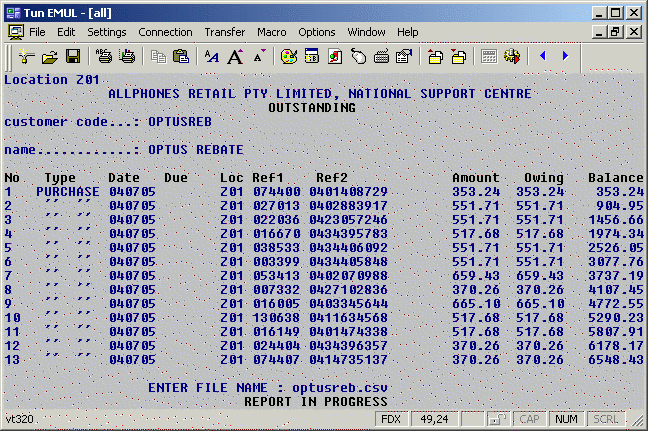
Run Customer Enquiry for the carrier account in question (e.g. OPTUSREB)
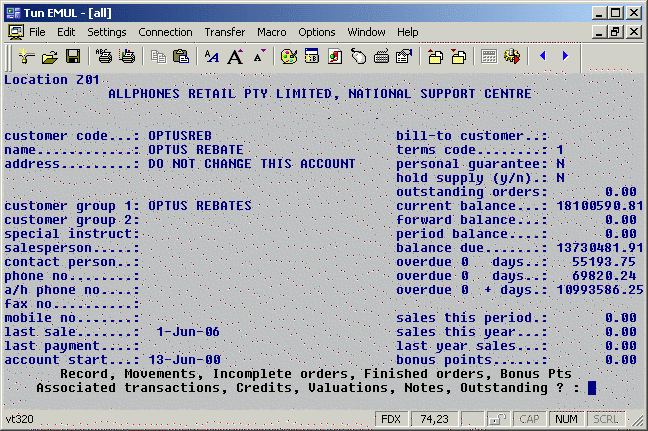
Select O for Outstanding and press enter twice to select all outstanding transactions.
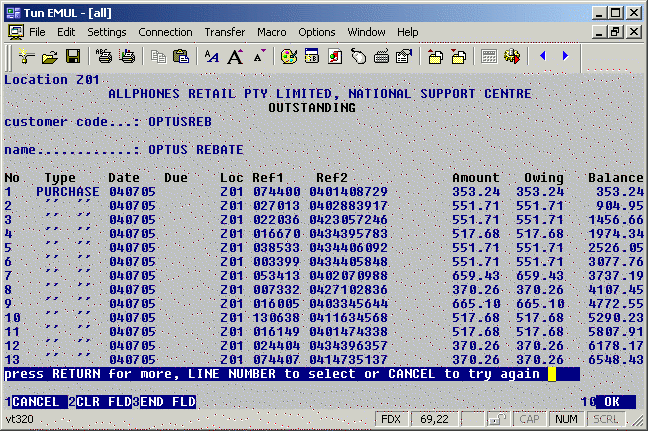
Press F1 (Cancel) and then Enter to save to a file
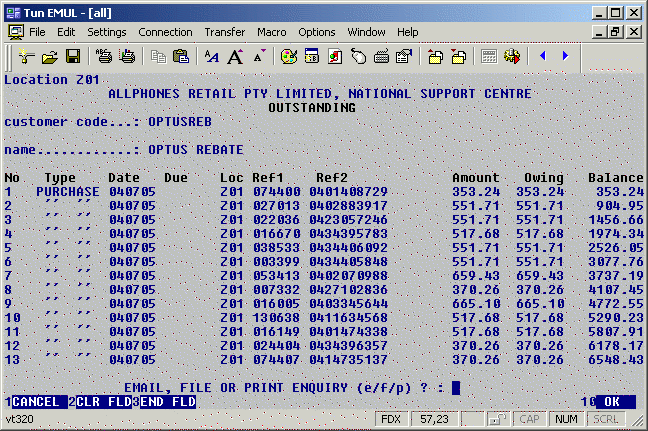
Say F to save to file, Y to remove column headings, Y for field delimited format, and then C for comma separated.



Save the file as the name of the carrier account with ".csv" appended. e.g: optusreb.csv

The report is then saved to file.
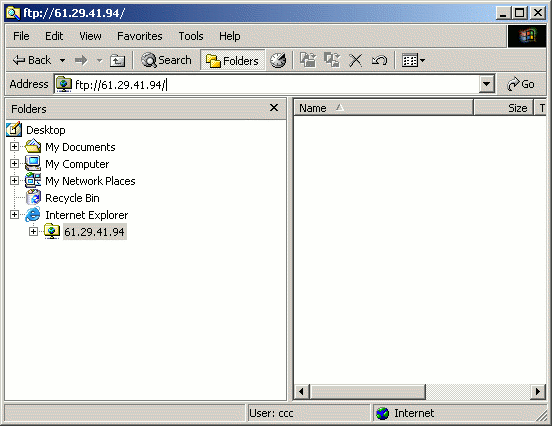
Step 2 (Downloading the data):
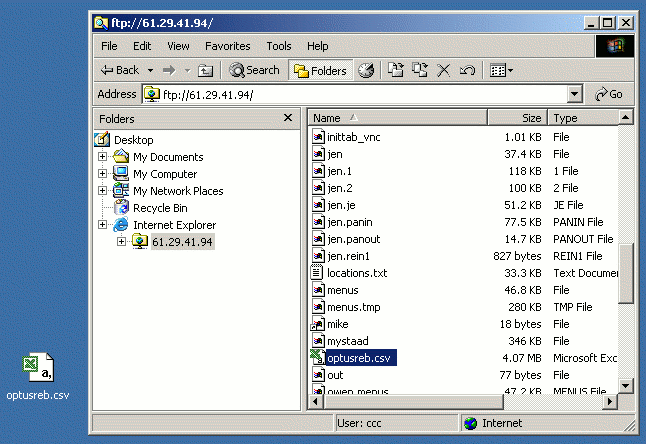
Open Windows Explorer, type ftp://61.29.41.94/ into the address bar, and hit Enter (or click Go).
(Do NOT use Internet Explorer)
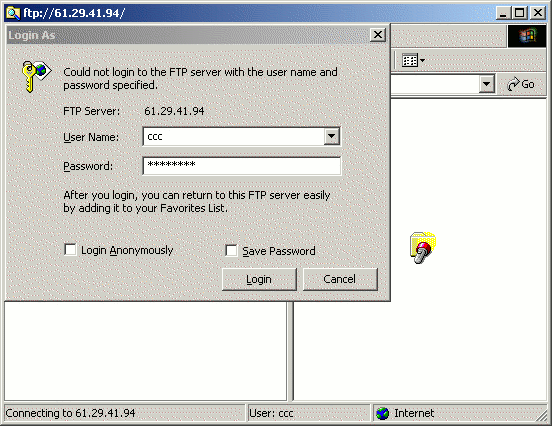
Windows should display a promp asking for username and password for the server, use the username and password you normally connect to the CONTROL server with.
Windows will display a list of all the files in your directory. Find the one you just saved (e.g: optusreb.csv) and drag it to your desktop.
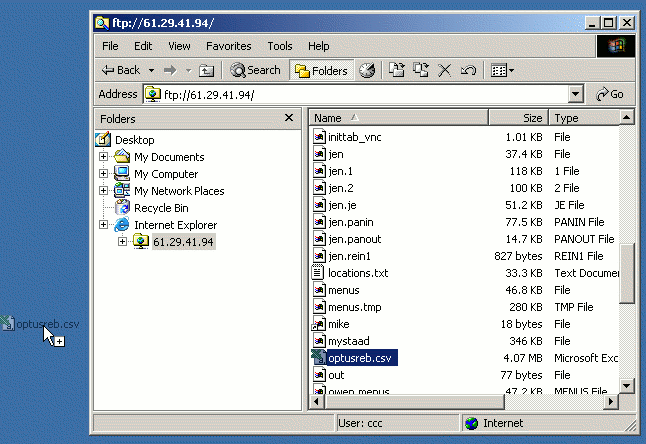
The file should automatically be transferred to your local machine.
Step 3 (Editing the spreadsheet):
At this point, the CSV file on your system should have the following columns:
Line Number
Transaction type
Transaction Date
Due Date
Location prefix
Ref1
Ref2
Total Amount
Amount Owing
Running total.
Many of these columns are not needed, but the import program expects them to still be there, so DON'T delete them.
After the running total column, the next three columns, to be inserted by you, in order, will be:
Payment Amount
Adjustment (discount) Amount
Adjustment Reason Code
The Payment Amount is the amount actually paid by the carrier, and Adjustment Amount will normally make up the difference between that and the Amount Owing. i.e. Payment Amount + Adjustment Amount = Amount Owing (so if Payment Amount is greater than Amount Owing then the adjustment will be NEGATIVE).
Adjustment Reason Code is an integer between 1 and 18 inclusive from (Admin -> System Configuration -> Accounting -> Accounts Receivable - Other) indicating why Adjustment Amount is non-zero.
IT IS AN ERROR if an Adjustment Amount is given without an Adjustment Reason Code. if the import detects this, it will ignore that line.
When you are finished, make sure you save the file back in CSV format.
Step 4 (Uploading the edited file back to the CONTROL server):
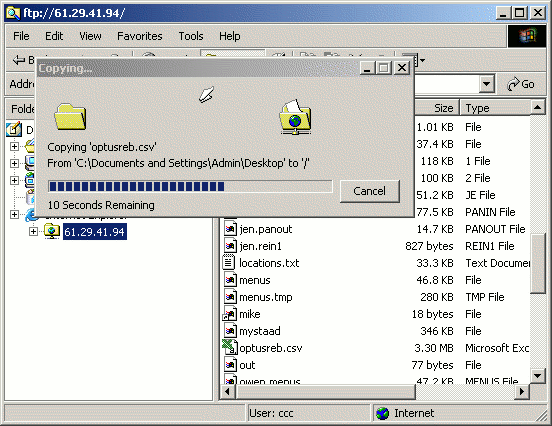
Couldn't be easier. If you still have the window open from step 2, just drag and drop the file back where you got it from. If not, first connect to the server again as in Step 2 (downloading the data). A dialog box will appear confirming the action.
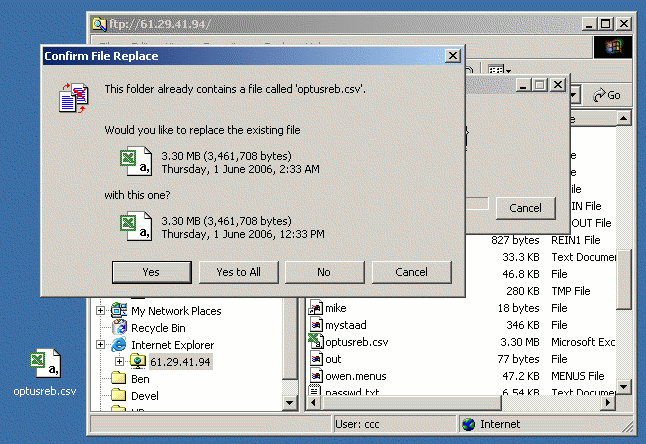
Click YES and the file will be sent back to the CONTROL server.
Step 5 (Processing the Carrier Payments):
Run the Carrier Payments import program:
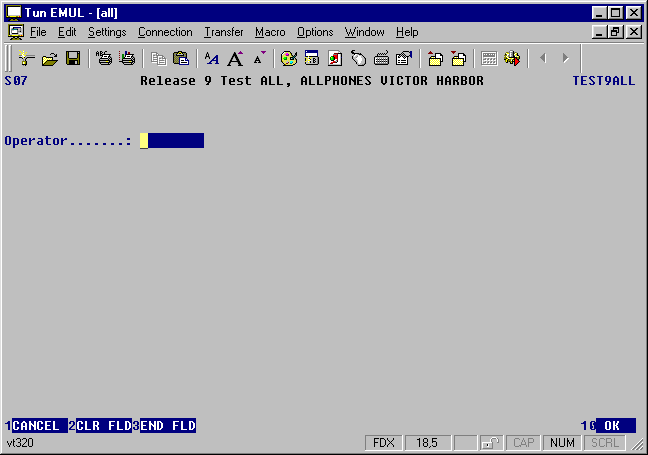
Enter the carrier account code (e.g. OPTUSREB) exported in Step 1 (Exporting the data), and the filename uploaded again in Step 4 (Uploading the edited file back to the CONTROL server):
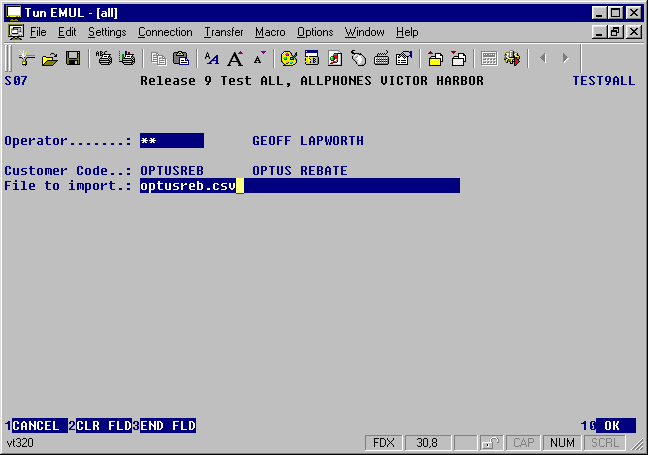
The file will then be imported into CONTROL and create the necessary payment transactions.
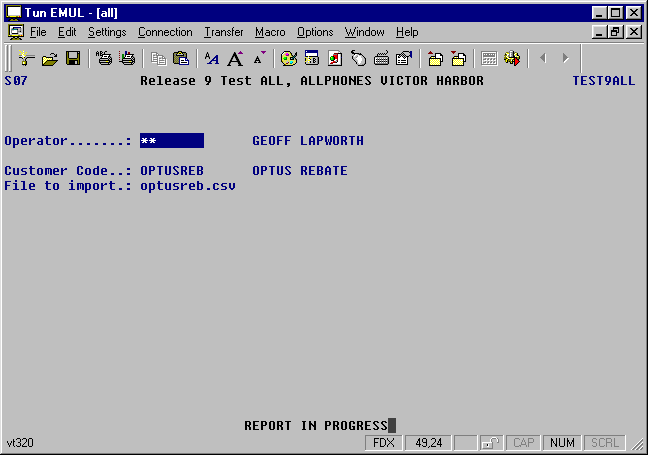
Step 6 (Reporting payments processed):
Run the Accounts Recievable Transaction Listing program:
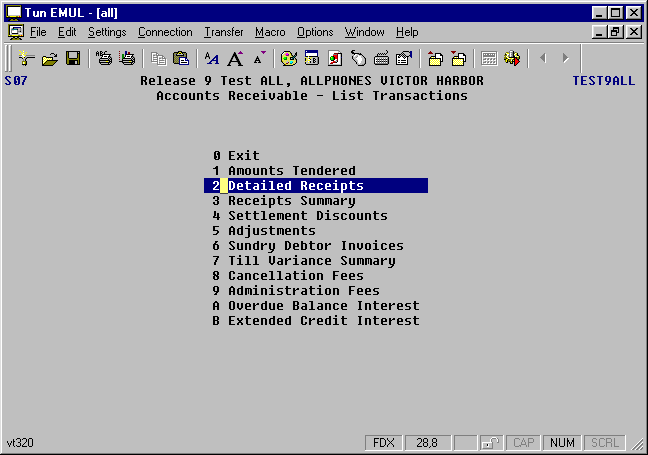
Select Detailed Reciepts From the Dayfile:

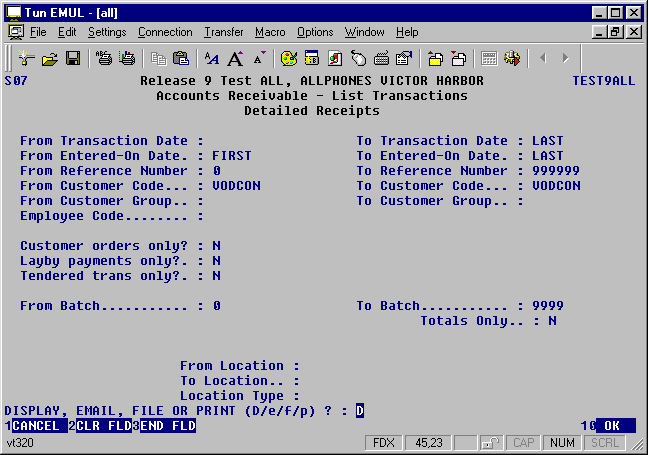
Enter "From Customer Code" and "To Customer Code" as the Carrier Payments Account just imported, and answer N to "Tendered trans only?":
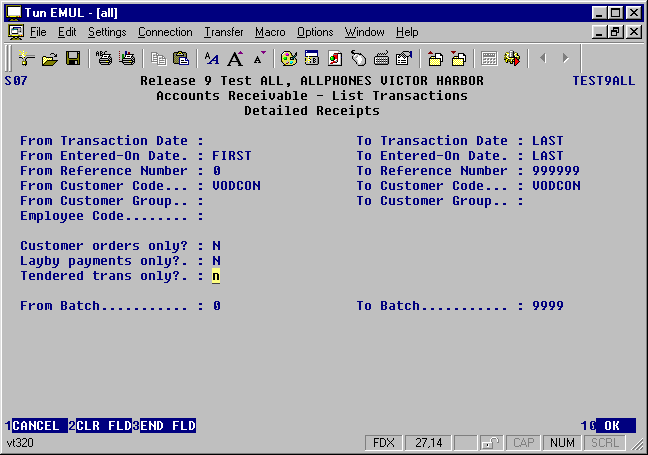
Select the report output style required:
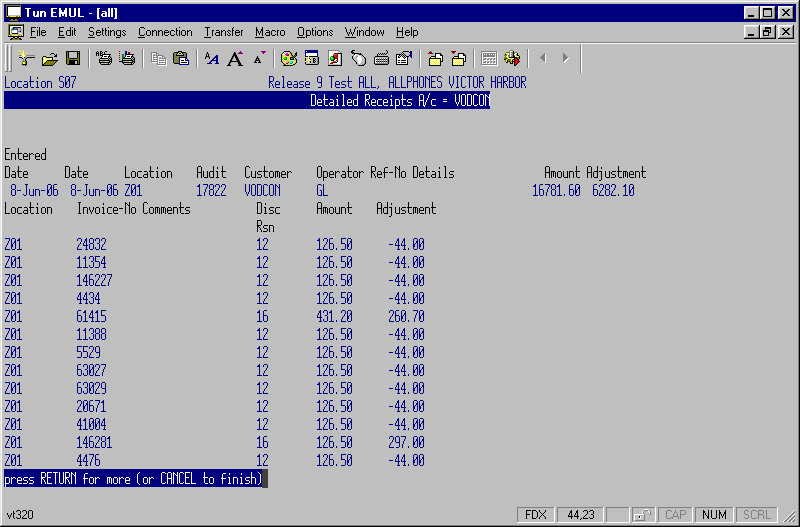
CONTROL should then generate a report of all payment transactions generated for the Carrier Account today: