
|
Size: 12527
Comment:
|
Size: 12876
Comment:
|
| Deletions are marked like this. | Additions are marked like this. |
| Line 206: | Line 206: |
| optino of log2magento |
|
| Line 209: | Line 211: |
| for example we imported items from impstmin and want to created these product in magento : fdb2log -B[inetloc] -a9 log2magento -N or we want to redump all the product created by control. fist need to login to magento admin and delete all item belong to the set. |
Three case of importing to magento 1, we had imported from magento using files and the cat was copied over from magento. fdb2log -B[inetloc] -a9 // only the stock log2magento -N // only the item with out id 2, we want to dump all control cat and stock into a empty magento fdb2log -B[inetloc] -a8 // first the cat log2magento -C //-C incase we have rubbish in online_id fdb2log -B[inetloc] -a9 // do the stock after cat so all cat was created log2magento -C //-C incase we have rubbish in online_i 3,want to redump a magento site which has item not created from control. |
Setting up integration with Magento-- Please go through the topic in following order, also when implementing
- Introduction
- setting up magento and control option
- setting up category
- import products from Magento.
- import Debtor from Magento.
- update Products in Magento.
- Repopulate Products in Magento.
- download orders from Magento.
1,Introduction
This is a document , which design to guild through the integration process step by step.
all the example used in this document is base on the development site for dalesandwaters located in
http://dev.daleandwaters.com.au/
on 05-11
the login detail is as follow
1, the admin page of their development site
http://dev.daleandwaters.com.au/admin
there is password for the site, this is also the password for the xmlrpc service (the on need in braad)
Username: crecom
Password: xVgAEcJ6ccao
and the pass word for the admin page
Username: kafuwong
Password: GfmL9XBk
All magento related error (e.g, fail to add product, of fail to remove product .etc), will be hidden from the user and all log to error.log.
2,Setting up magento and control option
the first step for the integration, is to set up the control options. without the options setup correctly, all the following will not work. there are three places ,needed to be set up.
1, coaad page 2, need to run contrl
- Enable update to odbc data files = 'Y'
- Online Store use Cscart/Magento/None = 'M'
Lasted downloaded Online order id = "an order number in magento , which and order <= will not get downloaded to control"
2, braad Sales tag, need to run brctrl
Webshopper data source -- the xmlrpc interface of magento ,e.g.http://dev.daleandwaters.com.au/api/xmlrpc/
- webshop login user name -- the user name used to login to magento xmlrpc service, hosting company will need to give us this.
- webshopper login user password -- provided by the hosting company.
- Default online Saleperson -- pick any control operator
- default online customer -- pick any control customer
3, magento side * go to manage attribute sets and create a new set.
- assign three attributes to the set which contain all color , size and subsize.
4, configure gencont page 3
- Location for Webshop 1 = "the branch just been configured"
- default Magento attribute set = "the attribute just set up in magento", this field is a pick list , will only allow you select available set in magento. all item created from control will appear in magento belong to this set. Note that this is not Category.
- default Magento color attribute = "the attribute which contain all color in magento" is a pick list again, will only allow to pick the attribute belong to the selected set.
- default Magento size attribute = "the attribute which contain all size in magento"
- default Magento subsize attribute = "the attribute which contain all subsize in magento"
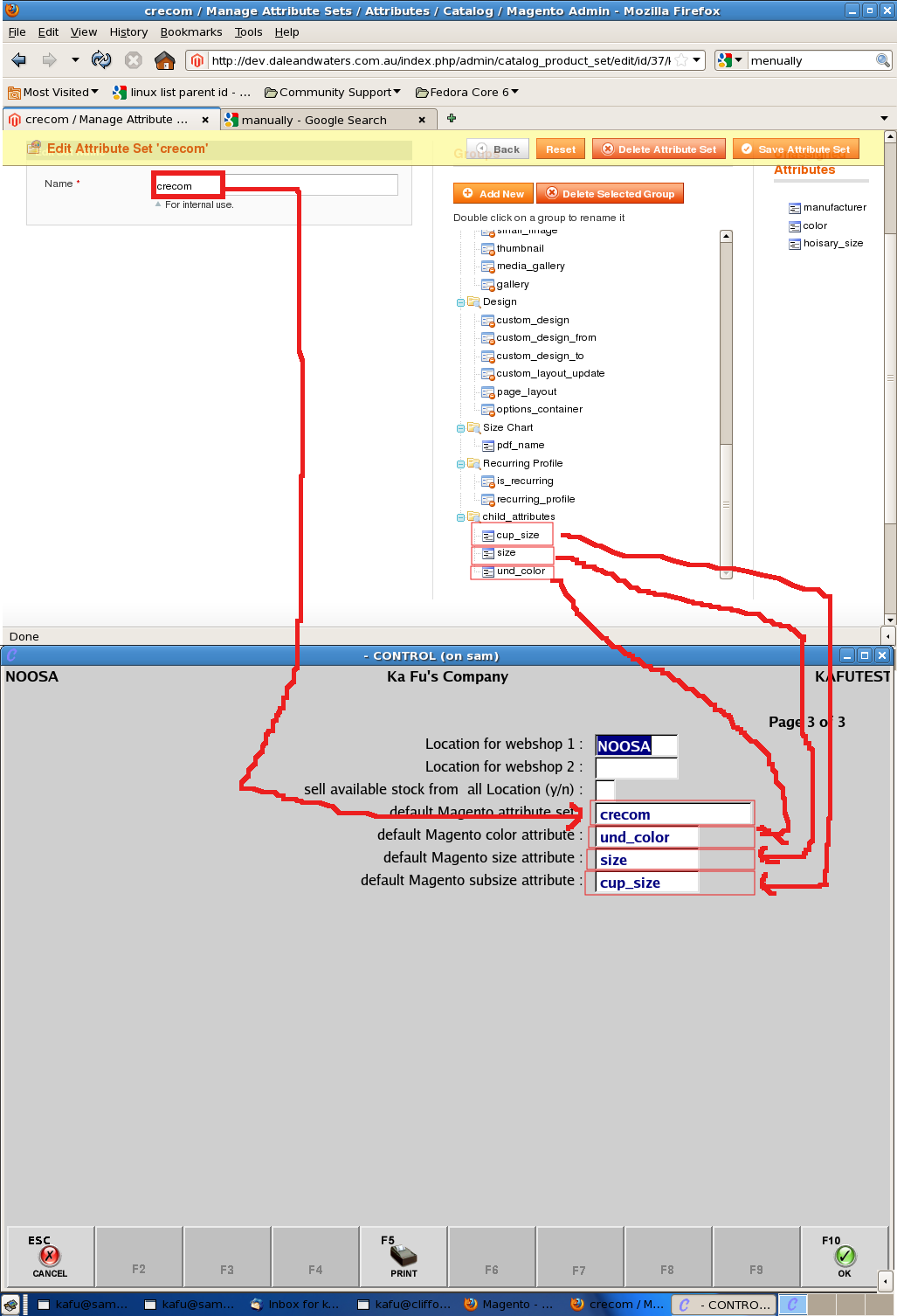
3,Setting up Category
we do not support , download of category from magento to control , or the other way , the category configuration has to be done manually. there are two way to do this
- by impcamin, we need to put in the online_id of magento's category in the column "online_id", the online id of the category can be found in magento admin page , manage Category. here is a example for the possible cat csv for dalesandwaters dev site
- or by caaad when , creating a new category in caaad, user can enter the online_id, this field is only editable in creation time, no alteration is allowed after that.
- Note that when adding category in Magento, make sure you set under display settings: is anchor = y. This is the setting that makes subcategory products show up on the current category.
If you changed display setting above, you need to reindex: Admin -> System -> Index Management -> "Select All" -> "Reindex data" -> "Submit"
4,Import products from magento
We need to get a csv file from magento, the csv can be obtained in magento admin page, system->Import/Export->profile->exprot_all_product. In case of ftp outbound not working, need to contact the hosting company, for the file.
after that ,
1,need to remove useless column in the header , so it only have the following fields
- {"sku", 60,YES},
- {"attribute_set", 60,NO},
- {"type", 60,NO},
- {"category_ids", 31,NO},
- {"name", 60,NO},
- {"price", 30,NO},
- {"status", 30,NO},
- {"tax_class_id", 60,NO},
- {"description", 1024,NO},
- {"qty", 60,NO,NUMBERS},
- {"is_in_stock", 60,NO},
- {"product_name", 60,NO},
- {"special_price", 60,NO},
- {"special_from_date", 60,NO},
- {"color", 60,NO},
- {"cost", 60,NO},
- {"weight", 60,NO},
2,and sort the csv in ascending order according to the SKU field
then we will need to run
impmagstmin
to also import qty run
impmagstmin --qoh
select the updated csv file , it may take some time , depending on the size of the csv,
following points are very important , please make sure it is carried out
please , make sure when running impmagstmin , the connection has been setup, (thes option in coaad , braad, gencont)
please , run this program in the branch , specified in the gencont as webshop location 1, the program is will not choose it for you, you need to do a manual conset.
5,Importing customer from magento
just like stock , need to get the csv from magento admin page
system->Import/Export->profile->exprot_customers.
then need to modify it to suit the import program
the original csv file look like this
after change should look like this.
then use impmagdrmin to import it.
impmagdrmin
selected the upated csv file
6,Update/Create product in magento.
- Any item created in control , we will also create it in magento.
- when creating product in magento a product set is needed, in control that is stored in gencont, so it is safe to say that all item created in control, will appear in that sat in magento.
- when creating an item in magento from control , an online_id will be returned from magento , and control will , store that item in the stock record.
- so any product with out an online_id mean it has not been created in magento, when putbuc that record, we will create it in magento.
- if a product has online_id , that mean it already exist in magento, when we putbuc we will update the record in magento
NOW there is two way to send item to magento. there is the instance method and the log method. the way we control it , involve programing. as demonstrated below.
by default magento connection has been disabled for most program. we need to turn on the connection on for each individual program, to have them connected.
- edit cclib/init.c find the following section
if(!strcmp(prognm,"staad")// the programs we want to connect to magento
       || !strcmp(prognm,"stgaad")
       || !strcmp(prognm,"chmin")
       || !strcmp(prognm,"spost")
       || !strcmp(prognm,"stpost")
       || !strcmp(prognm,"oqpost")
       || !strcmp(prognm,"impmagdrmin")
       || !strcmp(prognm,"impmagord")
       || !strcmp(prognm,"impmagstmin")
       || !strcmp(prognm,"log2magento")
       || !strcmp(prognm,"gencont"))
        suppress_magento = NO;
    if(!strcmp(prognm,"staad")// the program we allow to update magento product records
       || !strcmp(prognm,"stgaad")
       || !strcmp(prognm,"log2magento")
       || !strcmp(prognm,"chmin")
       || !strcmp(prognm,"spost")
       || !strcmp(prognm,"stpost")
       || !strcmp(prognm,"oqpost"))
        suppress_magento_update = NO;
    if(comp.use_cscart == 'm' && !suppress_magento)
        init_magento();
there is a check for suppress_magento this control if we connect to magento for that particular program
we will at least need it set to NO for the following program
- log2magento -- need to connect gencont -- need to get the set info so need to connect
- impmagstmin -- need to get the online id , so need to connect impmagdrmin -- need to get online id , so need to connect
- impmagord -- need to download order from magento so need to connect
- staad -- need to get the color and size from magento , to limit user input
- stgaad -- same as staad
then there is an other check use to control if that program is allowed to update magento product recordsuppress_magento_updateby default all program should not allow to update magento record. if want the change done by a particular program immediately appear in magento , the set this flag for that program. Also if the flag set for a program the suppress_magento need to set for that program too.
- so if we only want the log program to update magento record , then just put log2magento in the check.
- if we want to update magento in posting and staad we put staad stgaad stpost spost oqpost in the check.
regardless of how we update the product. in staad the colour/size tab , will be using combo box , to limit the entry to avaliable on in magento. following is pictures indicating the mapping of control field and magento field.
7,Repopulate magento with control product.
to repopulate mean update a lot of product in one goal, it involve two steps
- dump the product to log file, preferably a new dblog.dat
- send to product over with log2magento
there is different option can be use in log2magento to control the dump.
optino of log2magento

-O stand for OWN, only include item which set is the same as the one in gencont.
-C stand for create, will force to create the record in magento and reassign the new id back to control
-N stand for NEW, only include item which online_id is 0


Three case of importing to magento

1, we had imported from magento using files and the cat was copied over from magento.
fdb2log -B[inetloc] -a9 // only the stock
log2magento -N // only the item with out id

2, we want to dump all control cat and stock into a empty magento
fdb2log -B[inetloc] -a8 // first the cat
log2magento -C //-C incase we have rubbish in online_id
fdb2log -B[inetloc] -a9 // do the stock after cat so all cat was created
log2magento -C //-C incase we have rubbish in online_i

3,want to redump a magento site which has item not created from control.
then we run
fdb2log -B[inetloc] -a9
log2magento -O -C
note the -O here is the item we created in control, because all product import from magento will not be using the control set.
-C mean we force a create, regardless if we have online_id stored in control, we always create the stock in magento and update the id in control.
Please be ware , that running option -C along is dangerous , it is possible to remove online_id of item not created from control.
8,Download order to control
when down load order to control , we will use the program magimpord , it is designed to download a range of order , and it is supposted to run as a cron job
the magimpord will look at the record in coaad.
and try to down load and order with refferenct bigger than it, so it is very important to put in a number , before we first time run impmagord. because if we do not set the field , the program will try to download all existing order, this is bad, as the xml data will be too big to handle , and cause a MV in our xmlrpc-c library.
after each time impmagord run ,it will updae the field in coaad to the last downloaded order. the program will skip an order if it fail on that order and continue on the rest of the orders.
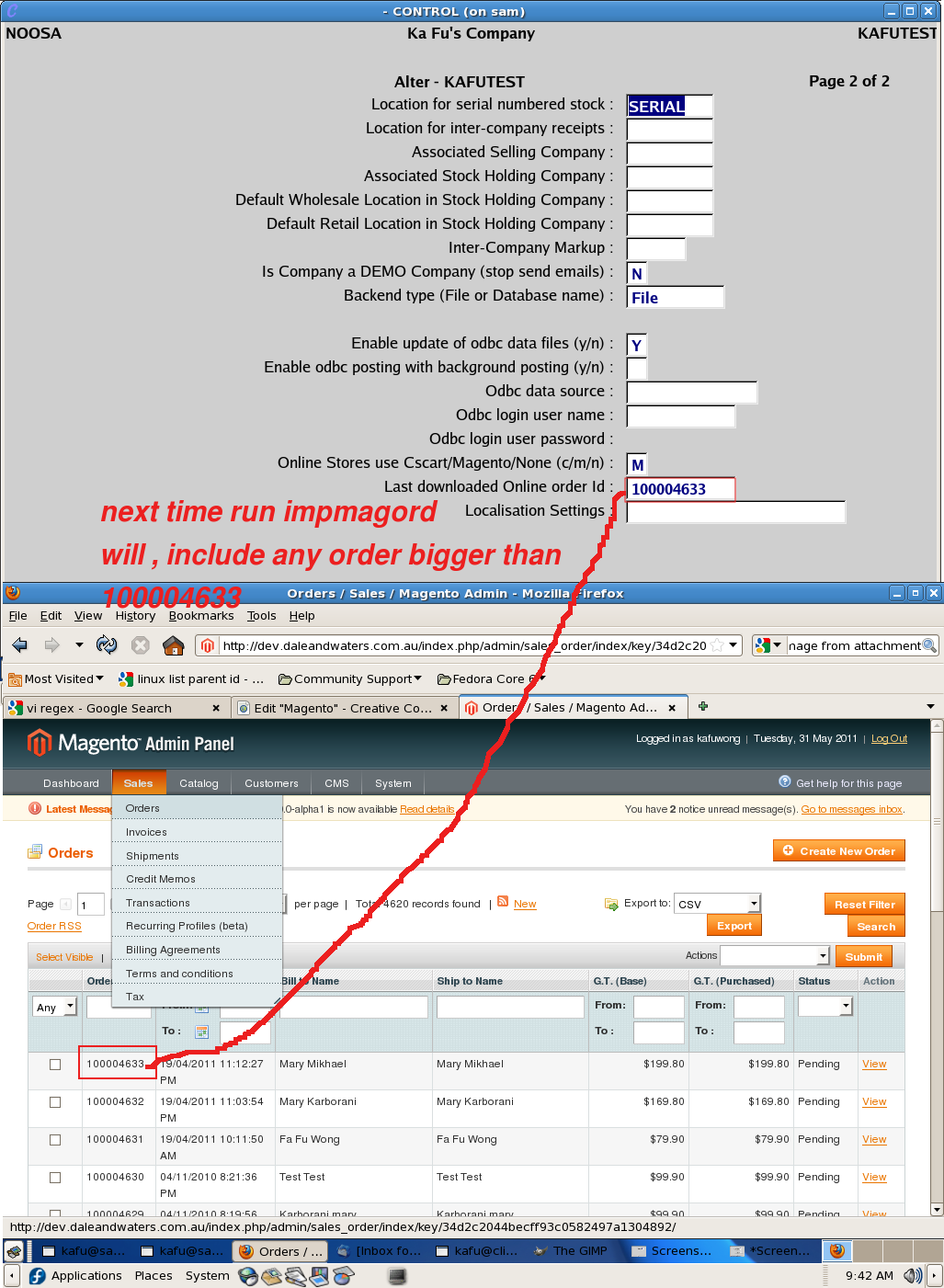
when downloading orders, control will create or update customer record depending on if the customer exist in control, control , will first try to match online_id if presented in the order , then email will be used for matching.
after down load the orders , need to run oqlstr to make it appear in control
set XMLRPC_TRACE_XML to 1 to display xml returned on screen
Notes:
The images are updated based on files in the images directory that end in _stamp. The last modified of this file has to be older than the image file itself for the Magento image to be updated.
Very Important. If API not patched with Fontis modifications (made for clothing company), parent child products wouldn't work. And log2magento will constantly error out with "Invalid api path". If you want to ignore these, set up a SCRIPT_ID on the terminal that runs log2magento.