
|
Size: 1299
Comment:
|
Size: 2315
Comment:
|
| Deletions are marked like this. | Additions are marked like this. |
| Line 8: | Line 8: |
| 1. Log in to your google account. ( support@crecom.com.au passwd C0ntr6l1 ) | 1. Log in to your google account. ( support@crecom.com.au passwd funky control with upper case C and 1 at the end ) |
| Line 17: | Line 17: |
| [[attachment:install.png|{{attachment:install.png|attachment:install.png|width="200"}}]] 1. Press the "OPEN" button to run bVNC the first time. [[attachment:open.png|{{attachment:open.png|attachment:open.png|width="200"}}]] 1. Click on the "Allow" button. [[attachment:allow.png|{{attachment:allow.png|attachment:allow.png|width="200"}}]] |
|
| Line 20: | Line 25: |
| 1. You should be already in the bVNC app after installing. If you are on the "home" screen, Press the bVNC icon on the upper left of the screen. | |
| Line 21: | Line 27: |
| 1. Under Title fill in the session name: | [[attachment:create.png|{{attachment:create.png|attachment:create.png|width="200"}}]] 1. Under Title fill in the session name: (These will be supplied when we set it up and send the mobile computers) |
| Line 23: | Line 30: |
| 1. On the port, fill in VNC Number + 5900. | 1. On the port, fill in VNC Number + 5900. <<BR>>Example, for session 27, 5900 + 27 = 5927 <<BR>>Port is 5927 |
| Line 25: | Line 32: |
| [[attachment:settings.png|{{attachment:settings.png|attachment:settings.png|width="200"}}]] | |
| Line 26: | Line 34: |
| 1. Press the computer icon with your session name to start Control Mini. [[attachment:main.png|{{attachment:main.png|attachment:main.png|width="200"}}]] |
Setting up android mobile computer
- Charge unit to at least 50% (some come pre charged, some are flat)
- Turn on the mobile computer.
- Press "SKIP" for connecting to mobile network.
- Connect to your local wifi. (choose it from a list and type in the wifi password)
- Press "Set up as new".
Log in to your google account. ( support@crecom.com.au passwd funky control with upper case C and 1 at the end )
- Press "SKIP" to adding your phone number.
- Agree to google terms of service.
- Say "Not now" to protect your phone, and say "SKIP ANYWAY".
- Say "NO THANKS" to enabling google assistant.
- Turn off all the google services and press "Accept".
- Skip over additional prompts.
- click the "Play Store" icon.
- Search for "bVNC" and install "bVNC: Secure VNC Viewer"
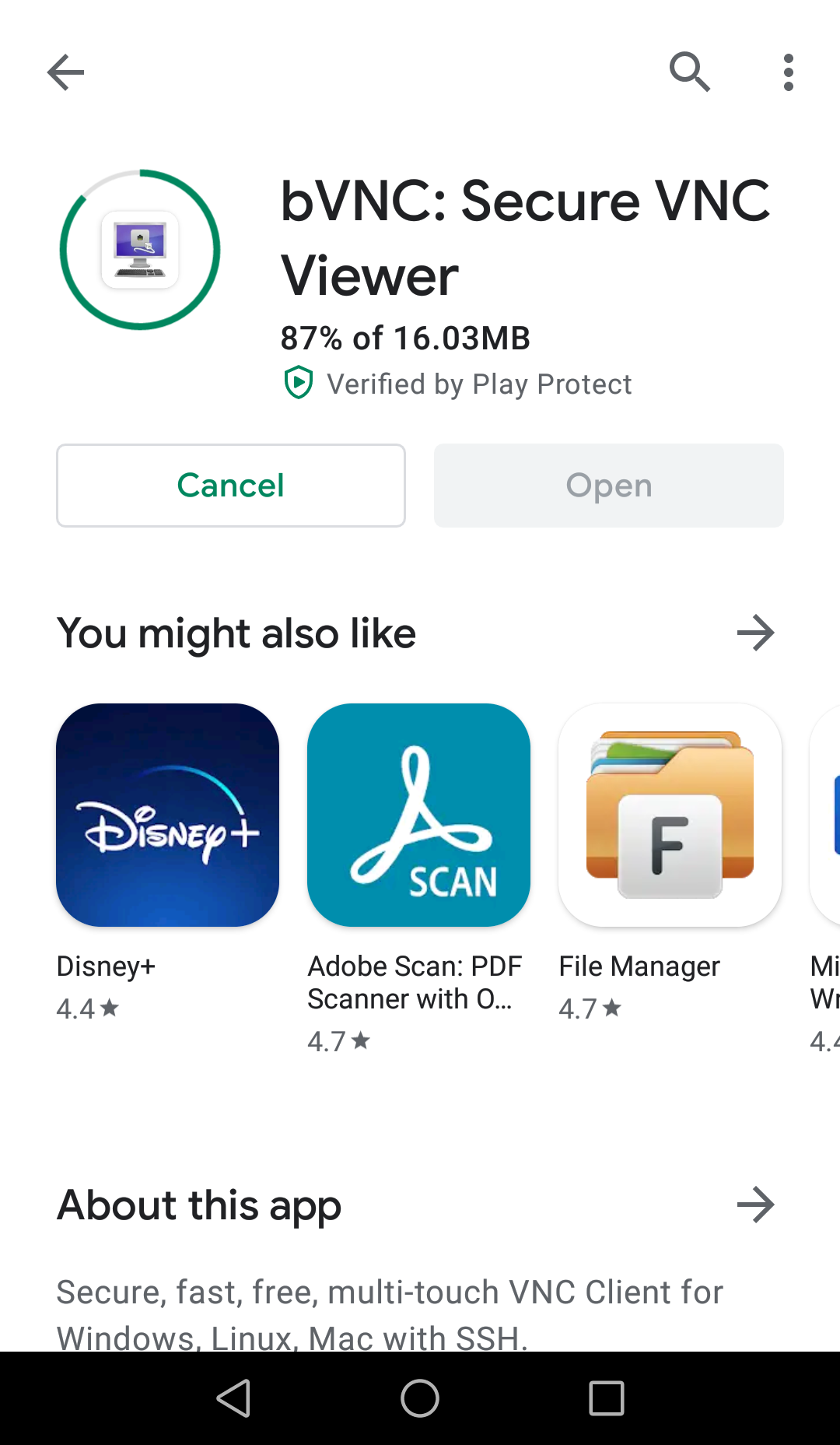
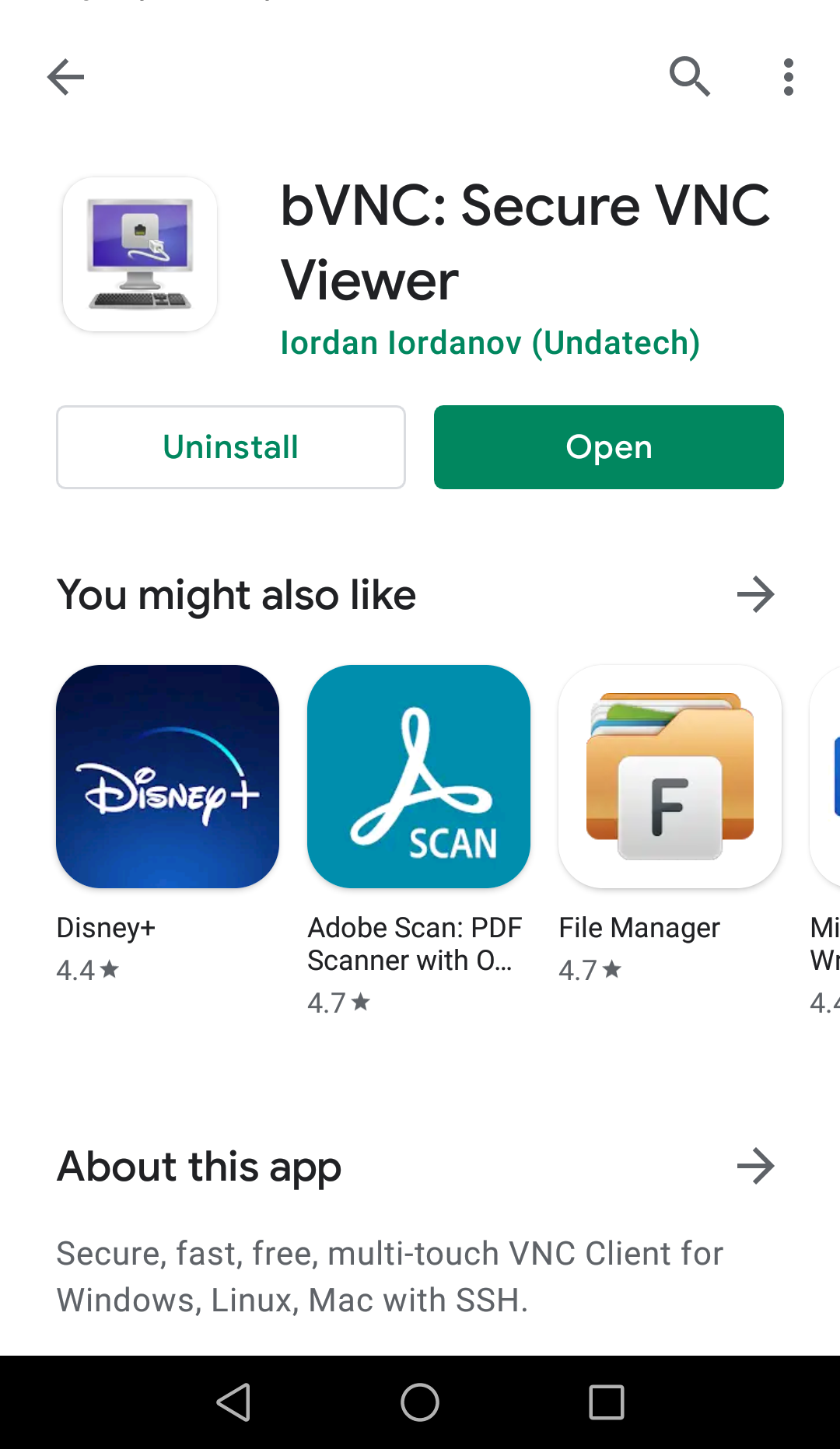
- Press the "OPEN" button to run bVNC the first time.
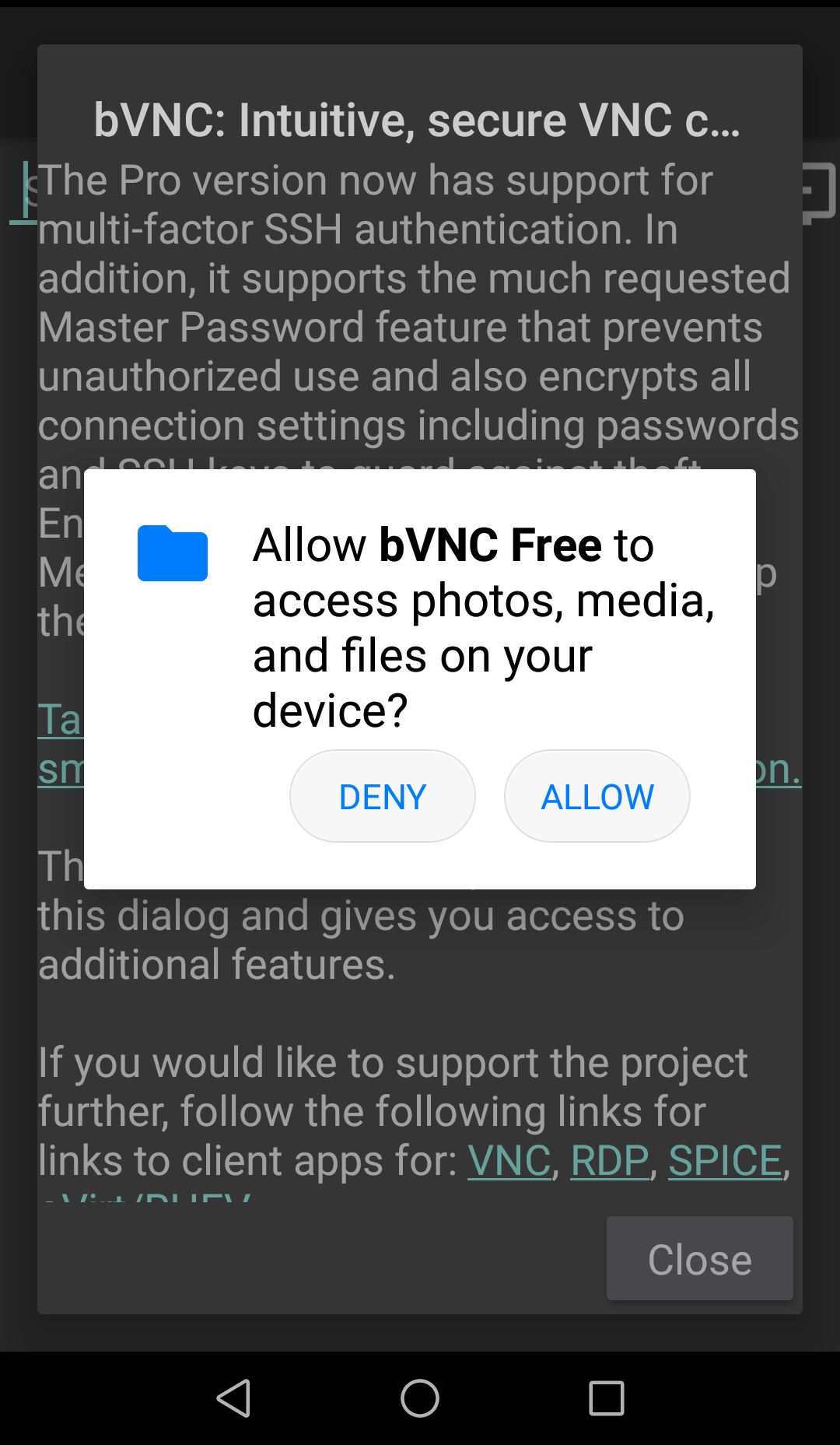
- Click on the "Allow" button.


Set up bVNC.
- You should be already in the bVNC app after installing. If you are on the "home" screen, Press the bVNC icon on the upper left of the screen.
- Click on the computer icon with the + sign inside.
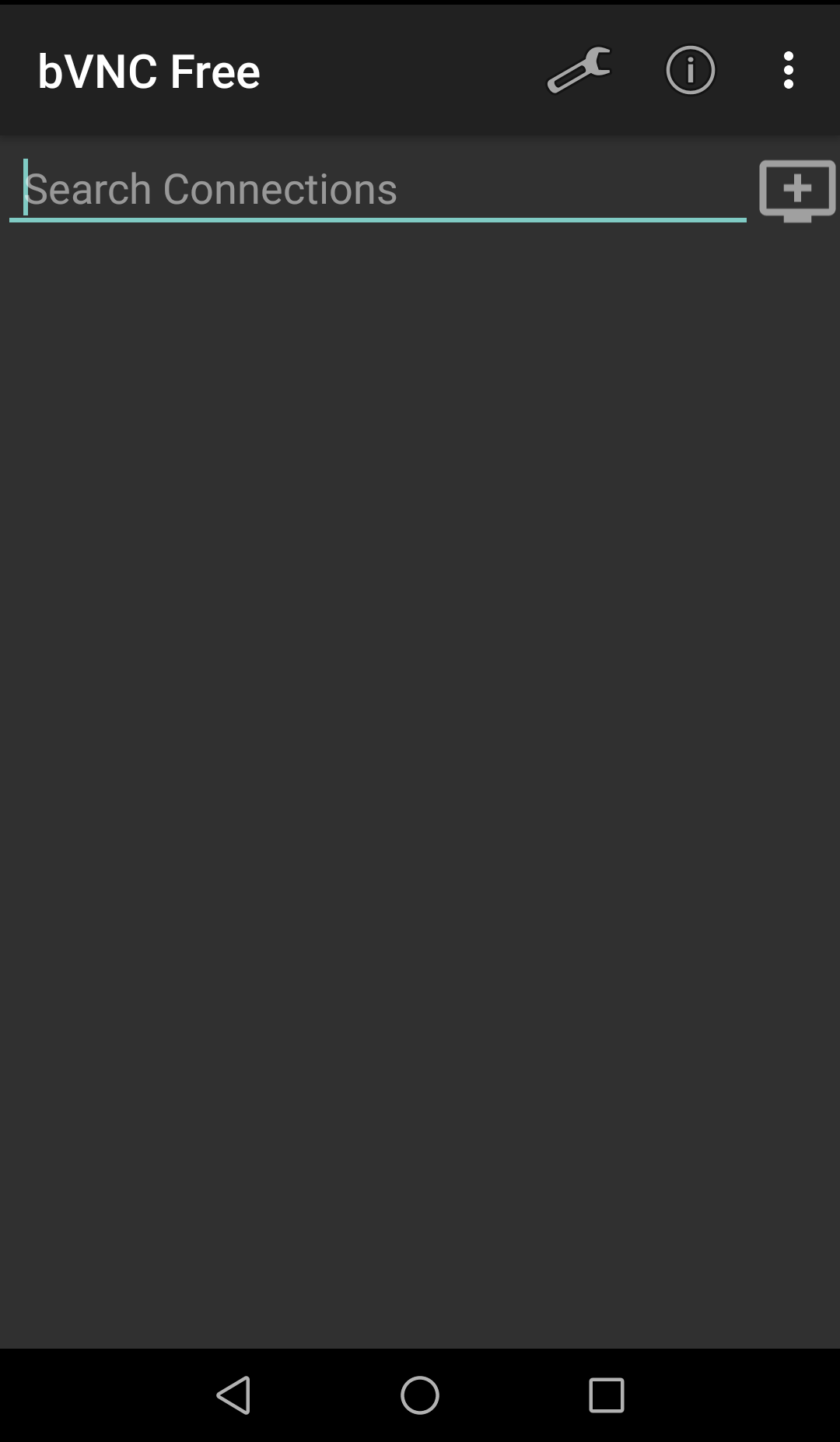
- Under Title fill in the session name: (These will be supplied when we set it up and send the mobile computers)
- Put server's IP under VNC Server.
On the port, fill in VNC Number + 5900.
Example, for session 27, 5900 + 27 = 5927
Port is 5927- Fill in the VNC Password (control).
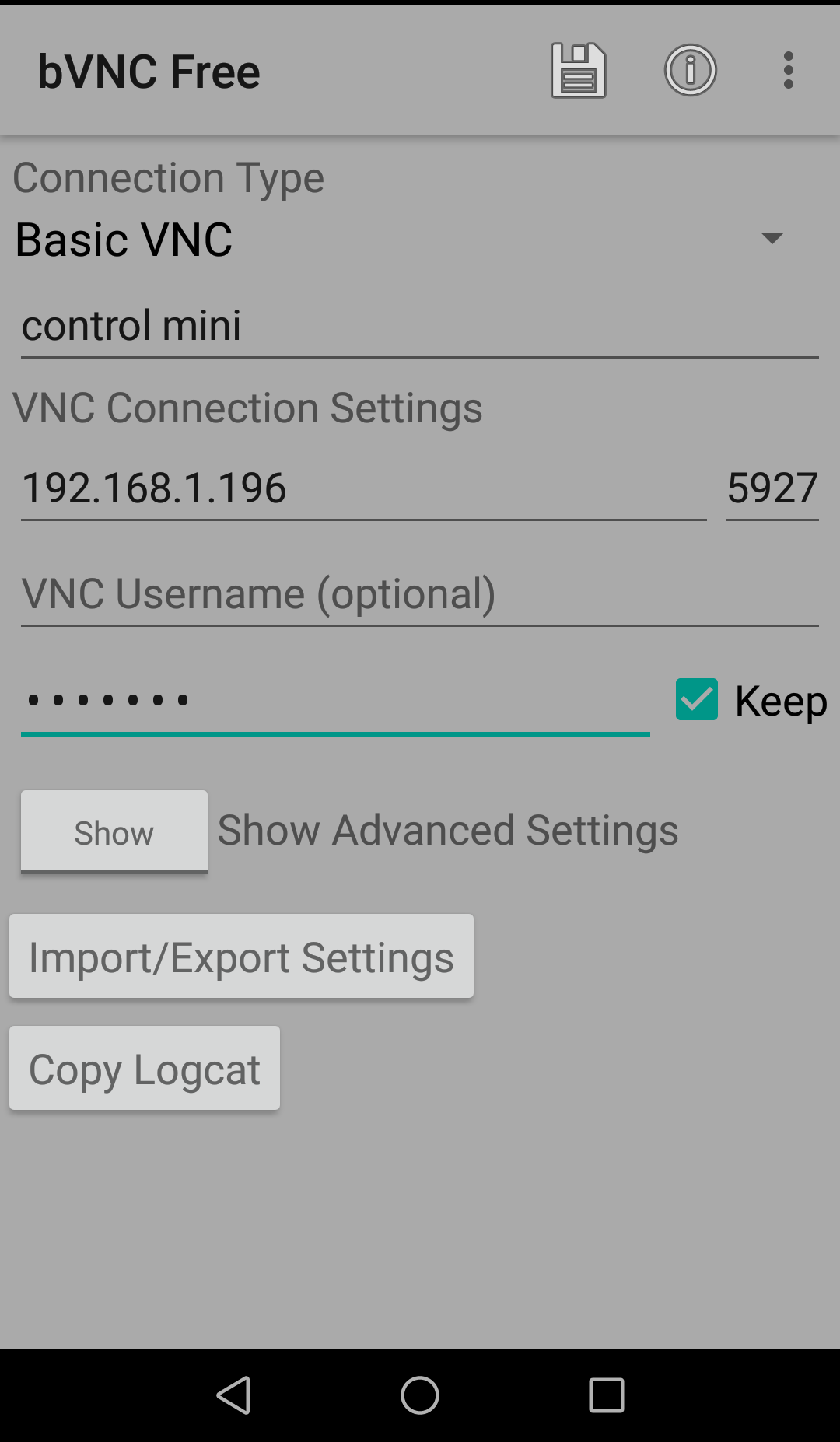
- Click on the disk icon on top to save.
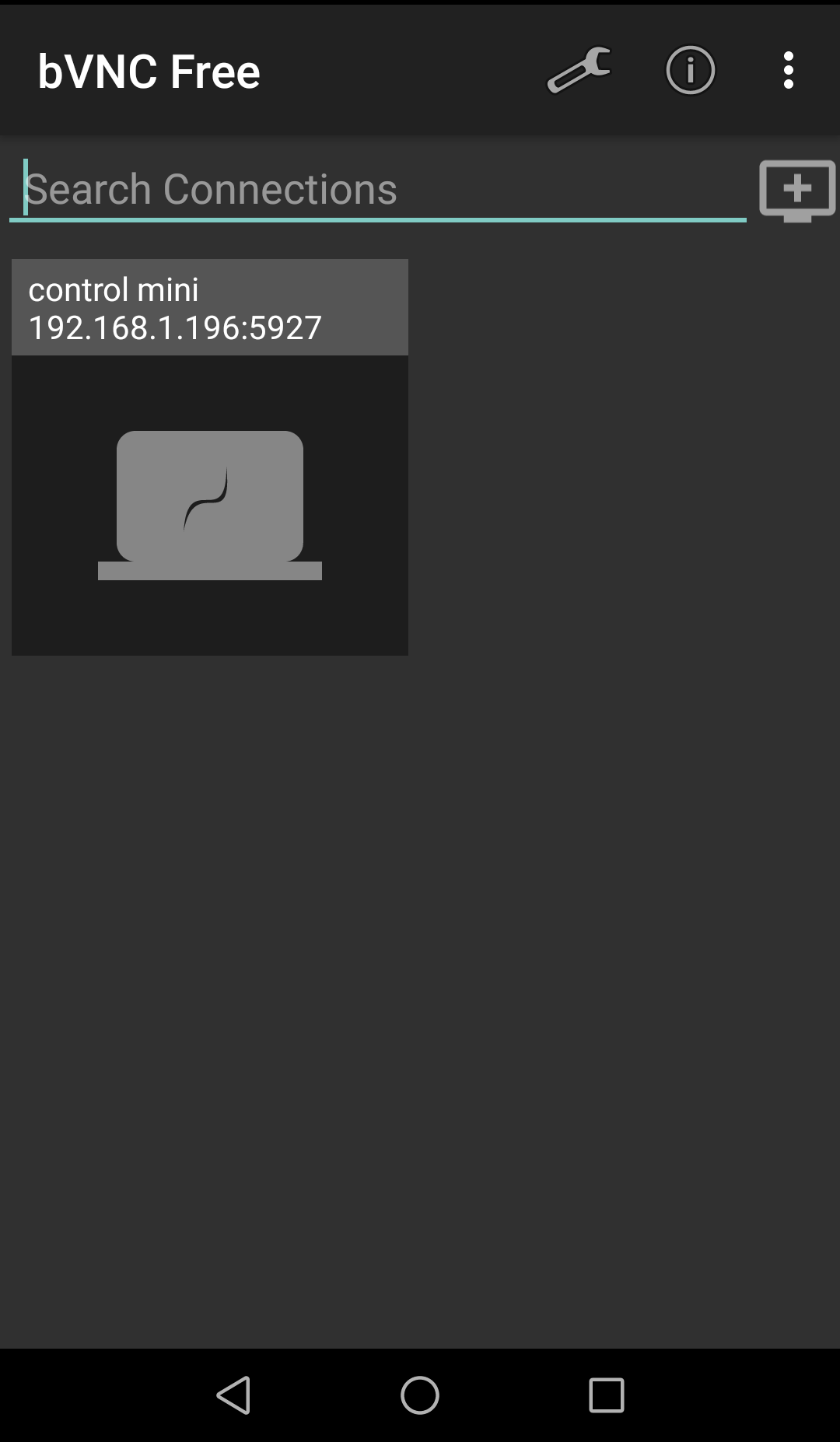
- Press the computer icon with your session name to start Control Mini.


If you get an error installing bVNC
- Swipe down from the top and click the gear icon.
- Scroll down and press "System".
- Press "System update."
- Choose remote updates.
- Press on any new updates that show up.