
|
Size: 2315
Comment:
|
← Revision 9 as of 2022-10-09 23:13:33 ⇥
Size: 2950
Comment:
|
| Deletions are marked like this. | Additions are marked like this. |
| Line 8: | Line 8: |
| 1. Log in to your google account. ( support@crecom.com.au passwd funky control with upper case C and 1 at the end ) | 1. Log in to your google account. (You need to create one in order to download apps) |
| Line 30: | Line 30: |
| 1. On the port, fill in VNC Number + 5900. <<BR>>Example, for session 27, 5900 + 27 = 5927 <<BR>>Port is 5927 1. Fill in the VNC Password (control). [[attachment:settings.png|{{attachment:settings.png|attachment:settings.png|width="200"}}]] |
1. On the port, fill in VNC Number + 5900. {{{ Example, for session 27, 5900 + 27 = 5927 Port is 5927 }}} 1. Fill in the VNC Password. [[attachment:settings.png|{{attachment:settings.png|attachment:settings.png|width="200"}}]]Note that the IP address in the above example, 192.168.1.196 is just that, an example, please enter your server's IP address [[attachment:settings.png|]] |
| Line 44: | Line 48: |
Using the Mobile Computers: 1. Press the "bVNC" icon if it isn't running. 1. Press the Computer icon with your session name to start Control Mini. 1. In order to scan with just the unit itself, just press either orange scan button on the side of the unit. 1. If using the trigger, just press on the trigger button to scan. (trigger has to be turned on. See step 4 in urovo_trigger.pdf instructions below) 1. Instructions for both units: <<BR>>[[attachment:urovo.pdf]]<<BR>>[[attachment:urovo trigger.pdf]] |
Setting up android mobile computer
- Charge unit to at least 50% (some come pre charged, some are flat)
- Turn on the mobile computer.
- Press "SKIP" for connecting to mobile network.
- Connect to your local wifi. (choose it from a list and type in the wifi password)
- Press "Set up as new".
- Log in to your google account. (You need to create one in order to download apps)
- Press "SKIP" to adding your phone number.
- Agree to google terms of service.
- Say "Not now" to protect your phone, and say "SKIP ANYWAY".
- Say "NO THANKS" to enabling google assistant.
- Turn off all the google services and press "Accept".
- Skip over additional prompts.
- click the "Play Store" icon.
- Search for "bVNC" and install "bVNC: Secure VNC Viewer"
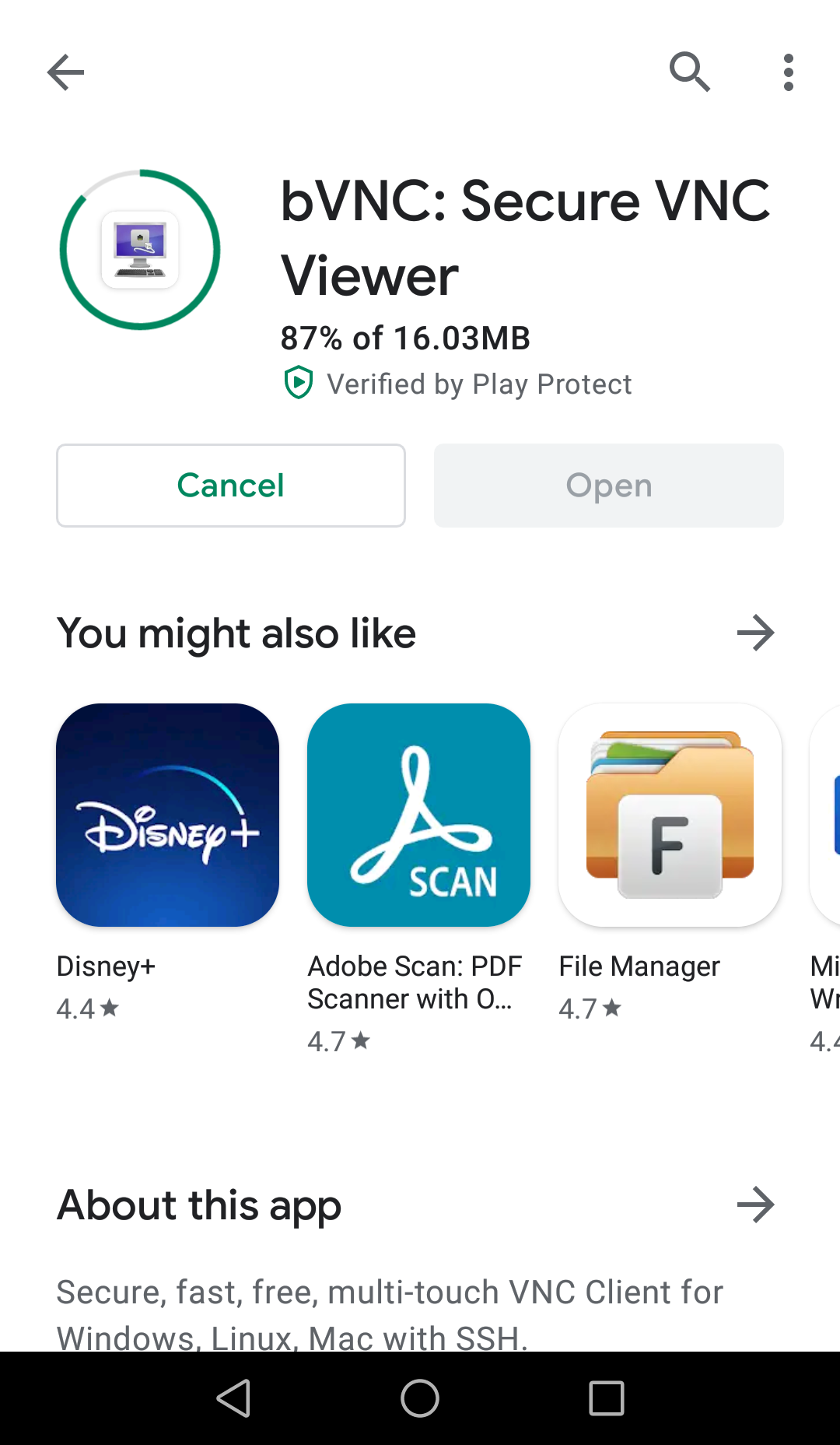
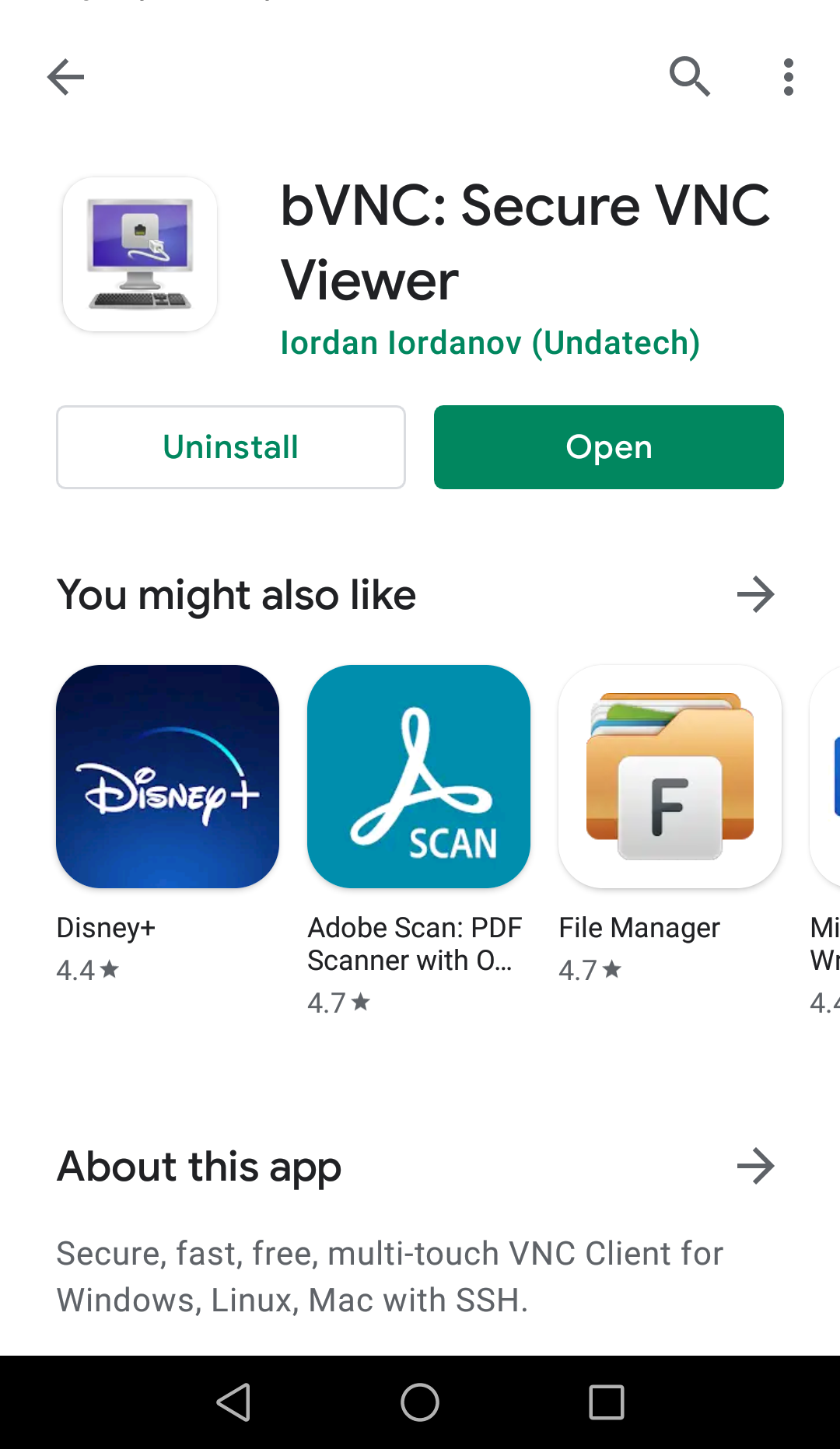
- Press the "OPEN" button to run bVNC the first time.
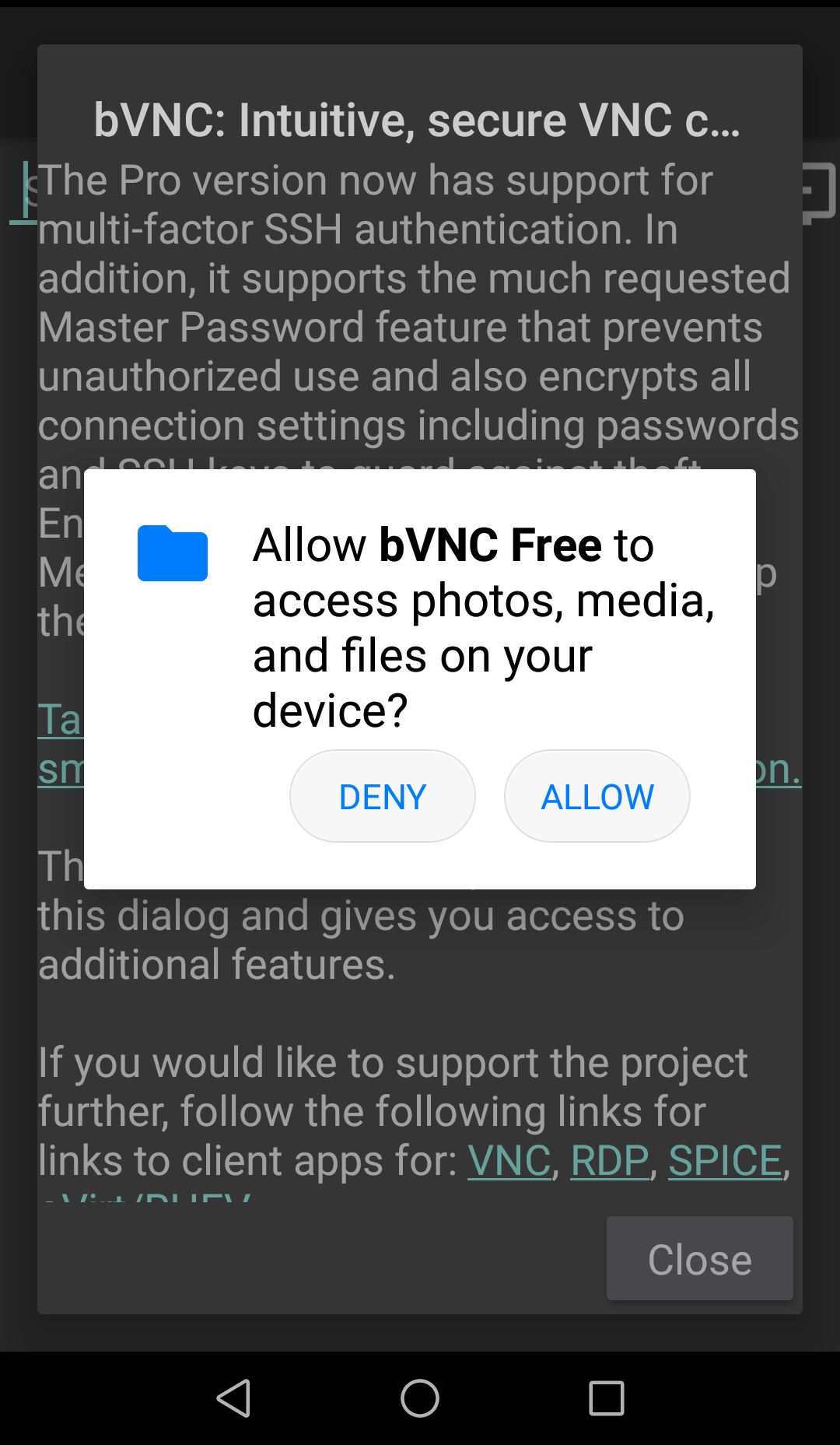
- Click on the "Allow" button.


Set up bVNC.
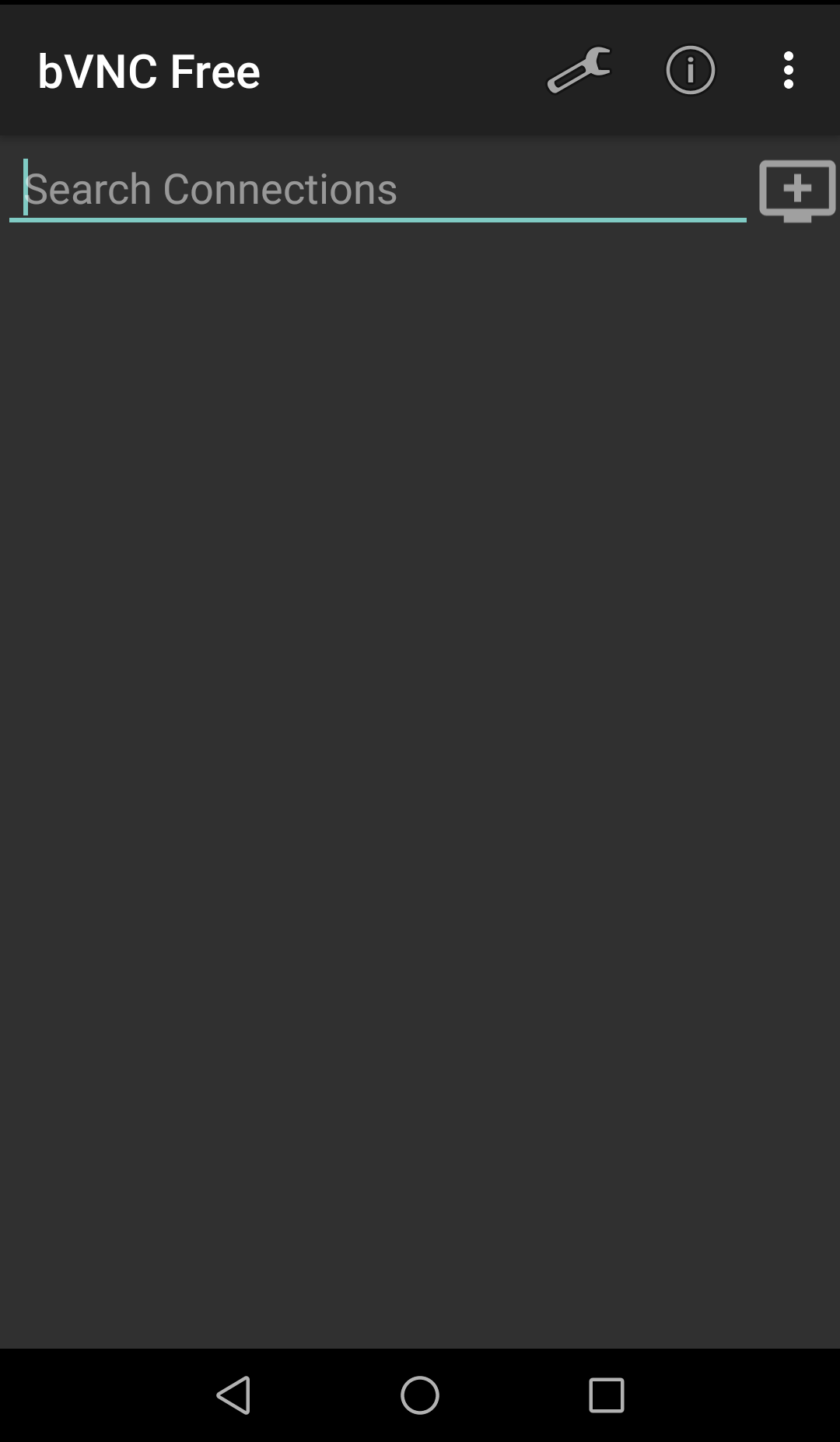
- You should be already in the bVNC app after installing. If you are on the "home" screen, Press the bVNC icon on the upper left of the screen.
- Click on the computer icon with the + sign inside.
- Under Title fill in the session name: (These will be supplied when we set it up and send the mobile computers)
- Put server's IP under VNC Server.
- On the port, fill in VNC Number + 5900.
Example, for session 27, 5900 + 27 = 5927
Port is 5927
- Fill in the VNC Password.
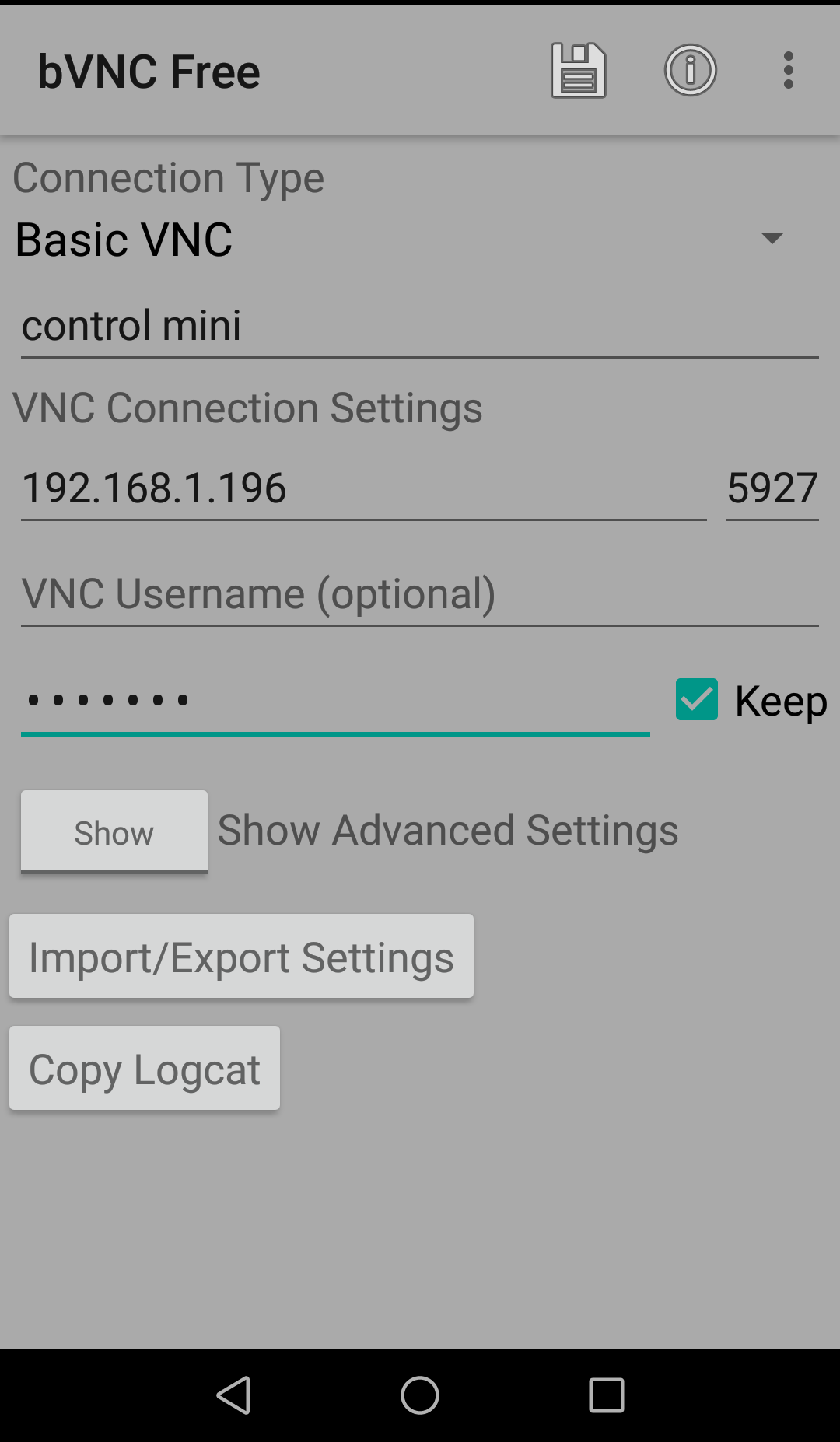 Note that the IP address in the above example, 192.168.1.196 is just that, an example, please enter your server's IP address settings.png
 - Click on the disk icon on top to save.
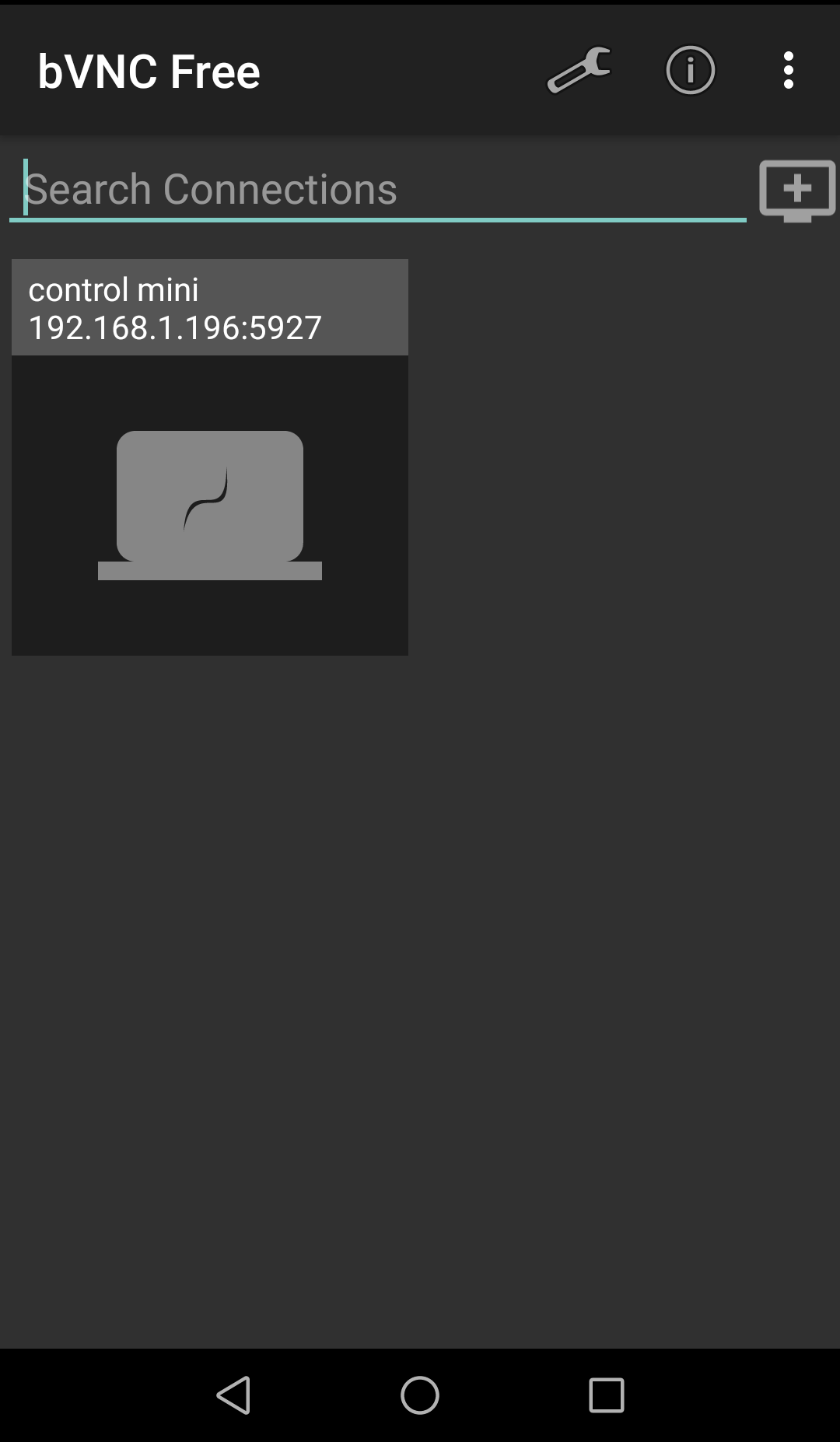
- Press the computer icon with your session name to start Control Mini.


If you get an error installing bVNC
- Swipe down from the top and click the gear icon.
- Scroll down and press "System".
- Press "System update."
- Choose remote updates.
- Press on any new updates that show up.
Using the Mobile Computers:
- Press the "bVNC" icon if it isn't running.
- Press the Computer icon with your session name to start Control Mini.
- In order to scan with just the unit itself, just press either orange scan button on the side of the unit.
- If using the trigger, just press on the trigger button to scan. (trigger has to be turned on. See step 4 in urovo_trigger.pdf instructions below)
Instructions for both units:
urovo.pdf
urovo trigger.pdf