
|
Size: 107
Comment:
|
← Revision 6 as of 2013-09-18 06:09:34 ⇥
Size: 1231
Comment: converted to 1.6 markup
|
| Deletions are marked like this. | Additions are marked like this. |
| Line 3: | Line 3: |
| attachment:aegis/enterprise_manager.jpg | {{attachment:enterprise_manager.jpg}} 1. Select the database that needs to be backed up. Right-click on the database and then goto '''All Tasks''' and then '''Backup Database''' {{attachment:backup1.jpg}} 1. This should bring up the dialog shown below. Specify that you want a '''Complete backup'''. Click on '''Add''' to specify the location where you want the backup to be saved. Also ensure that the overwrite option is set to '''Overwrite existing media''', otherwise you will end up with a file which has duplicate copies of the database. {{attachment:backup2.jpg}} 1. Click '''Ok''' on the dialog, and then it should proceed to backing up the database. ---- = Restoring MS SQL databases = 1. Open the Enterprise Manager as shown above. 1. Select the database that needs to be restored. Right-click on the database and then goto '''All Tasks''' and then '''Restore Database'''. {{attachment:restore.jpg}} 1. This should bring up the following dialog. Select the backup from which you want to restore. {{attachment:restore3.jpg}} 1. Click on '''Ok''' and the database will be restored. ---- CategorySql |
Backing up MS SQL databases
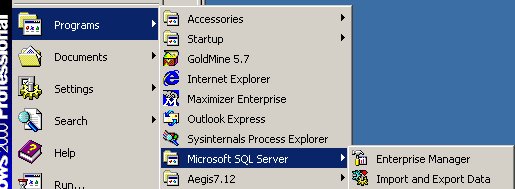
- Open the Enterprise Manager
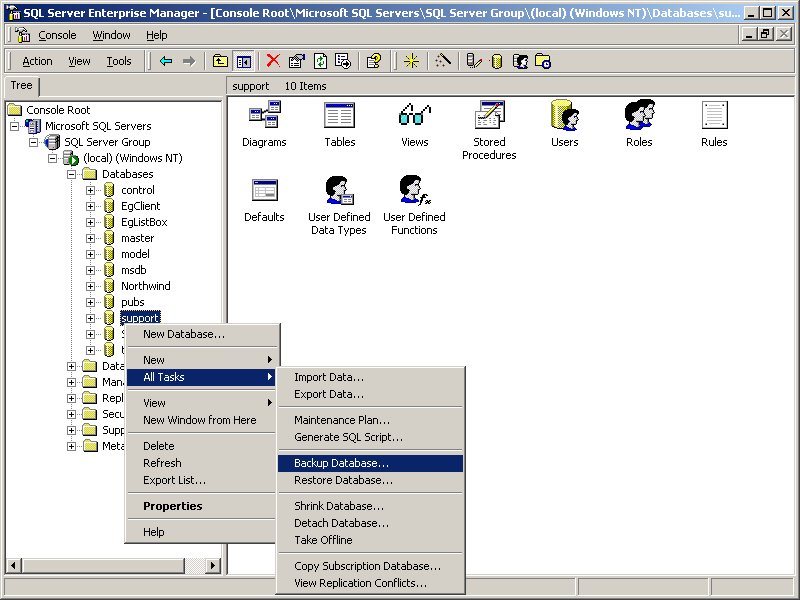
Select the database that needs to be backed up. Right-click on the database and then goto All Tasks and then Backup Database
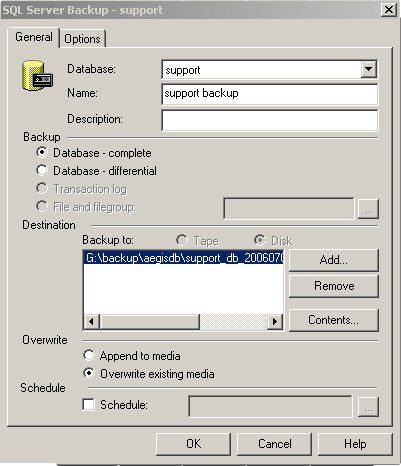
This should bring up the dialog shown below. Specify that you want a Complete backup. Click on Add to specify the location where you want the backup to be saved. Also ensure that the overwrite option is set to Overwrite existing media, otherwise you will end up with a file which has duplicate copies of the database.
Click Ok on the dialog, and then it should proceed to backing up the database.
Restoring MS SQL databases
- Open the Enterprise Manager as shown above.
Select the database that needs to be restored. Right-click on the database and then goto All Tasks and then Restore Database.
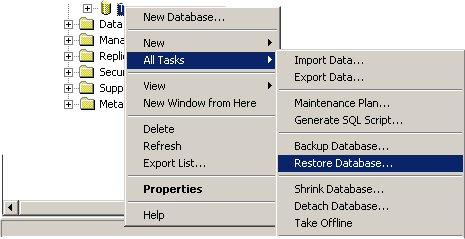
- This should bring up the following dialog. Select the backup from which you want to restore.
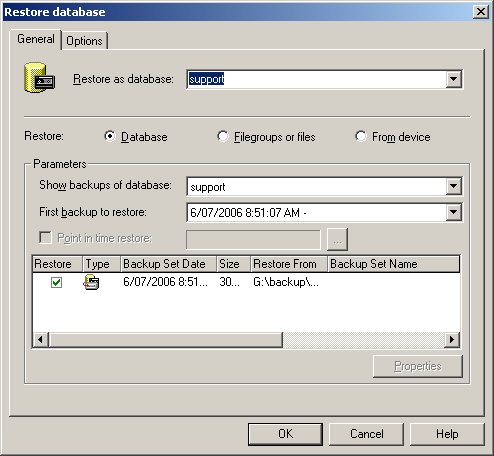
Click on Ok and the database will be restored.