
|
Size: 1606
Comment:
|
← Revision 4 as of 2013-09-18 06:09:33 ⇥
Size: 1625
Comment: converted to 1.6 markup
|
| Deletions are marked like this. | Additions are marked like this. |
| Line 1: | Line 1: |
| . Wiki Tutorial A '''wiki''' is a type of website that allows users to easily add and edit content and is especially suited for collaborative authoring. This tutorial will outline the process of publishing and editing documents on the wiki. The software powering this wiki is a [http://www.gnik.com/wiki/PwykyNotes modified] version of the Python based [http://infomesh.net/pwyky/ pwyky]. |
= Wiki Tutorial = A '''wiki''' is a type of website that allows users to easily add and edit content and is especially suited for collaborative authoring. This tutorial will outline the process of publishing and editing documents on the wiki. The software powering this wiki is a [[http://www.gnik.com/wiki/PwykyNotes|modified]] version of the Python based [[http://infomesh.net/pwyky/|pwyky]]. |
| Line 7: | Line 7: |
| attachment:search_wiki.png | {{attachment:search_wiki.png}} |
| Line 12: | Line 12: |
| attachment:submit_query3.png | {{attachment:submit_query3.png}} |
| Line 27: | Line 27: |
| attachment:create_example.png | {{attachment:create_example.png}} |
| Line 31: | Line 31: |
| [http://www.crecom.com.au/ Creative Computing] | [[http://www.crecom.com.au/|Creative Computing]] |
Wiki Tutorial
A wiki is a type of website that allows users to easily add and edit content and is especially suited for collaborative authoring. This tutorial will outline the process of publishing and editing documents on the wiki. The software powering this wiki is a modified version of the Python based pwyky.
Searching
At the bottom of each page the Wiki can be searched.

Editing
Each Wiki page can be edited by clicking on the WikiTutorial link at the bottom of each page. When done so, you will provided with an editable area of text with some lightly formatted text. Upon completion of editing the text press Submit Query.
Creating new pages
There are two ways of creating a new wiki page:
- Creating a link
- Typing in a URL
> Creating a link
Whilst editing a document, surrounding a word in curly { braces } will create a [/pywiki/link link]. Pages that have yet to be created are underlined with a question mark indicating no content.
> Typing in a URL
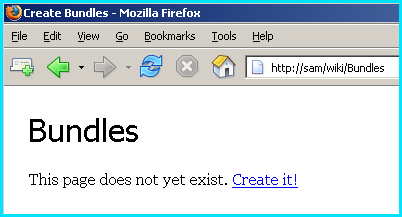
You may create a new document by typing the name directly into the URL. For example if you would like to create a new document for Bundles, type in http://sam/wiki/Bundles and you'll be prompted that the specified page does not exist and whether you would like to create it.
Use under scores to create emphasis phrases or equal signs for mono text