|
Size: 75
Comment:
|
← Revision 3 as of 2013-09-18 06:09:34 ⇥
Size: 648
Comment: converted to 1.6 markup
|
| Deletions are marked like this. | Additions are marked like this. |
| Line 1: | Line 1: |
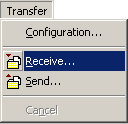
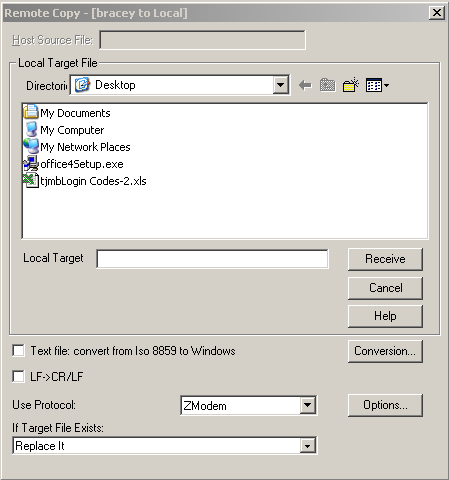
| On the Menu's ZModem is usually accessable under {{{Send File (ZModem)}}} | On the Menu's ZModem is usually accessable under {{{Send File (ZModem)}}}. Selecting the menu will firstly give you a listing of files which can be downloaded. Choose a file by number. In the pictured example file I have selected sale.scv to be downloaded, I did this by typing '22'. {{attachment:file_listing.png}} Next instructions are presented on how what to do next. After pressing Enter, from the TUN menu select Transfer > Receive. A remote copy window will appear, the main option to select is the Protocol "ZModem". Press receive and the file should download. {{attachment:transfer_menu.png}} {{attachment:remote_copy.png}} |
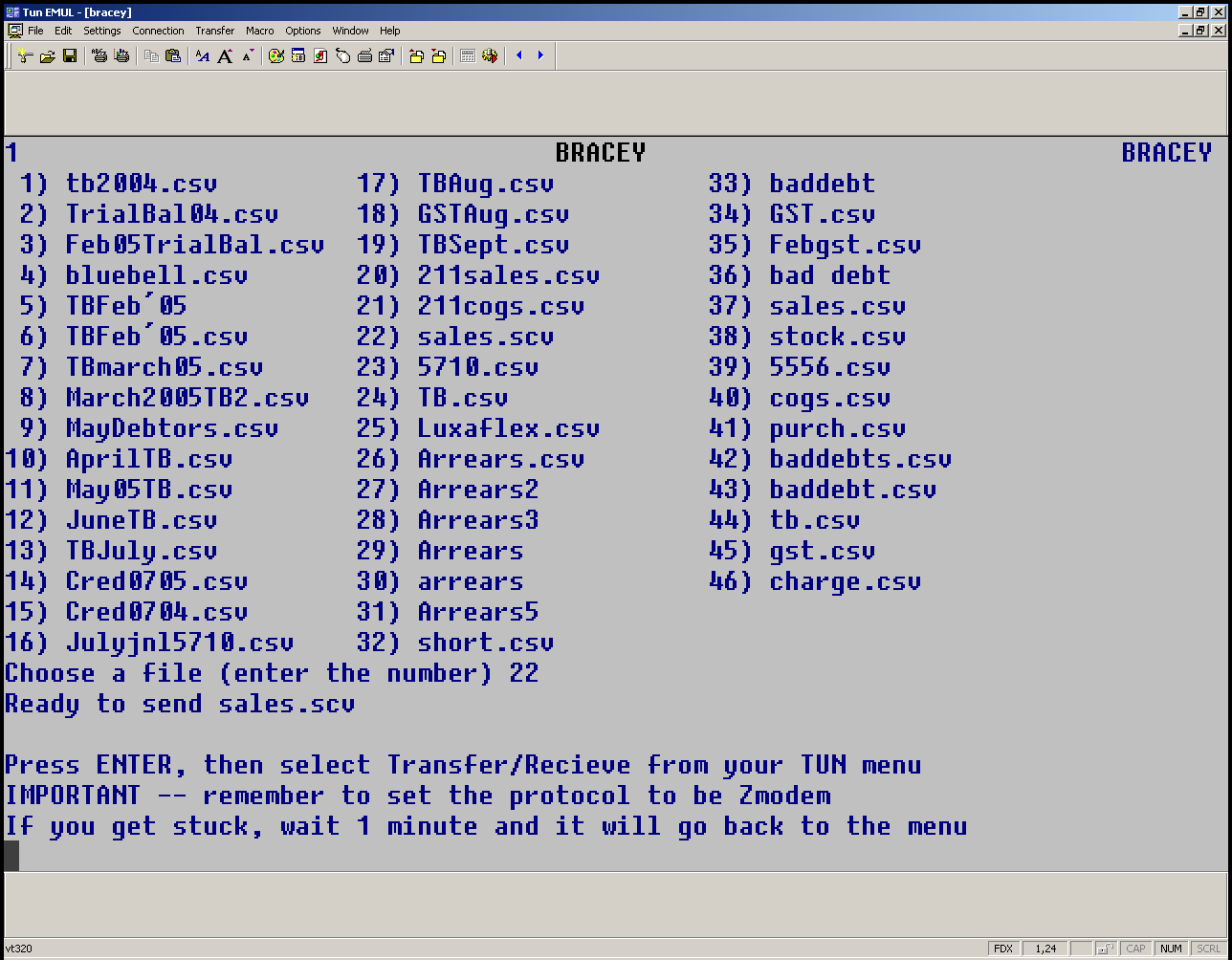
On the Menu's ZModem is usually accessable under Send File (ZModem). Selecting the menu will firstly give you a listing of files which can be downloaded. Choose a file by number. In the pictured example file I have selected sale.scv to be downloaded, I did this by typing '22'.
Next instructions are presented on how what to do next. After pressing Enter, from the TUN menu select Transfer > Receive. A remote copy window will appear, the main option to select is the Protocol "ZModem". Press receive and the file should download.