
|
Size: 3245
Comment:
|
Size: 3861
Comment:
|
| Deletions are marked like this. | Additions are marked like this. |
| Line 73: | Line 73: |
| Double click on the icon. | [[attachment:Screenshot from 2022-12-19 14-34-00.png]] Double click on the icon. You would see something similar to the following screen: [[attachment:Screenshot from 2022-12-19 15-32-01.png]] |
| Line 77: | Line 81: |
| Service URL: <supplied in separate email> Service Env: /u/<ccdir> |
Service URL: <supplied in separate email> (usually in the form customer_name.creativecomputing.com.au) Service Env: <ccdir> (also supplied in separate email, usually in the form /u/cc<customer_name> ) |
| Line 80: | Line 86: |
| In the Control printers column, fill in the printer supplied in your email. | In the Control printers column, fill in the printer(s) supplied in your email. (you would get a list of control printers, usually these would be set up with self explanatory names during initial install.) |
| Line 86: | Line 93: |
| Choose "Control Panel" from the list | {{attachment:Screenshot from 2022-12-19 15-06-19.png}} Choose "Control Panel" from the list: {{attachment:Screenshot from 2022-12-19 15-07-22.png}} |
| Line 90: | Line 101: |
| {{attachment:Screenshot from 2022-12-19 15-32-35.png}} |
|
| Line 91: | Line 104: |
Installing Java printing (customer side)
Before you begin, please make sure you are able to print a windows test page. This cannot be a "printeout from word" or "a printout of an email". If you cannot print a windows test page, stop right now or you are wasting your time.
Download the following: http://customers.creativecomputing.com.au/winprint/crecomps_install.exe
Because this program is unsigned, you may get a warning "crecomps_install.exe isn't commonly downloaded, Make sure you trust crecomps_install.exe before you open it" If you do, you have to tell windows that you do want to keep this file:
Click on the downloads icon of your browser:
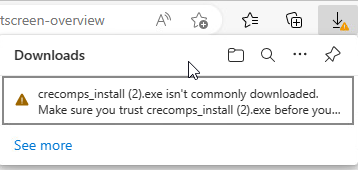
Click on the 3 dots following the warning message and choose "keep"
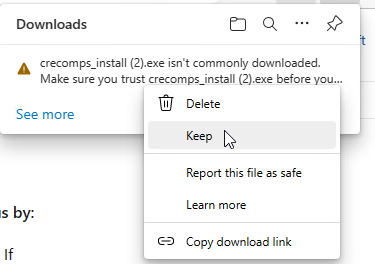
On the screen that shows up, click the down arrow next to "show more"
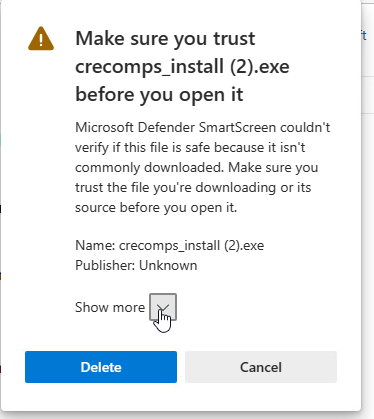
And choose "keep anyway"
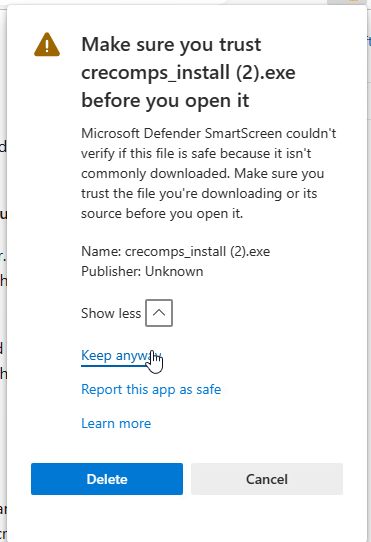
Now double click on the crecomps_install.exe:
If you get a windows defender warning:
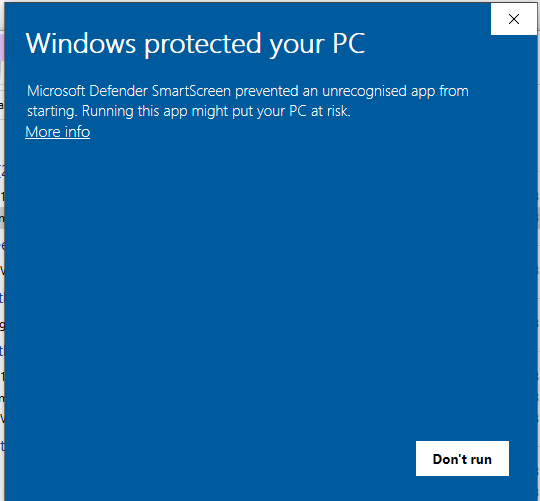
Click on "more info":
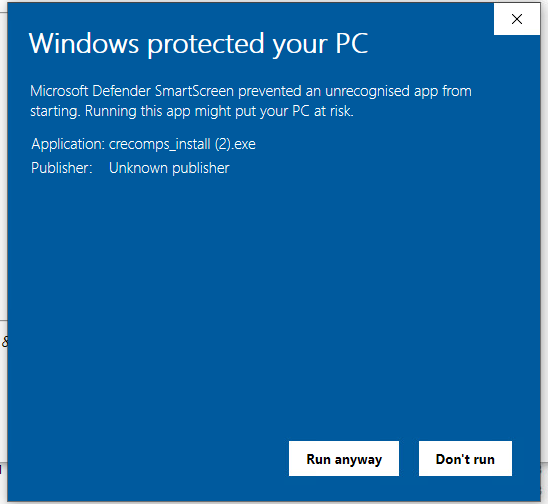
Click on "run anyway"
If you get a "User Account Control" warning:
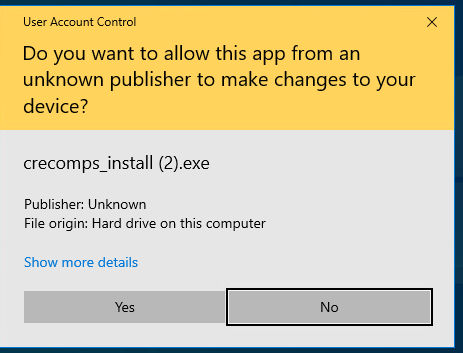
Click on "yes"
The installer will run:
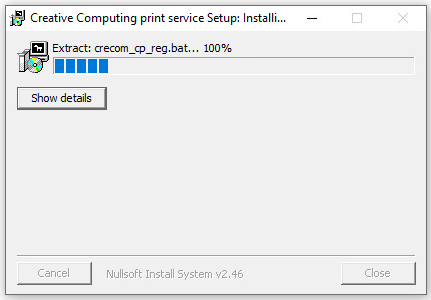
At the end it will install Java:
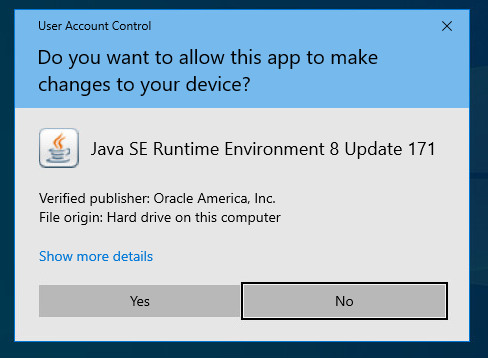
If you get "User Account Control" warning, click on "Yes"
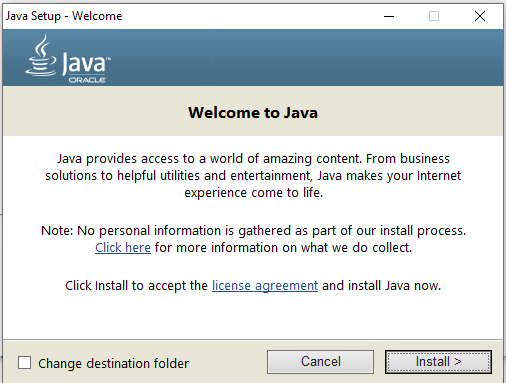
Click Install
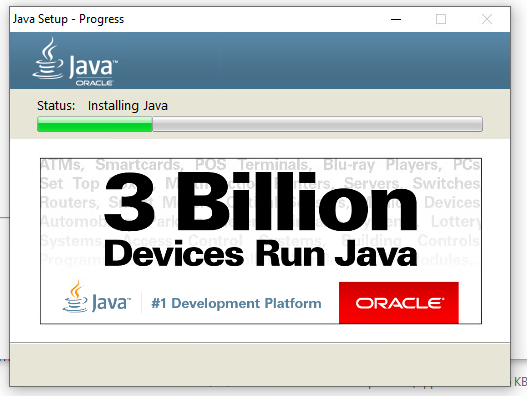
Wait for install to complete:
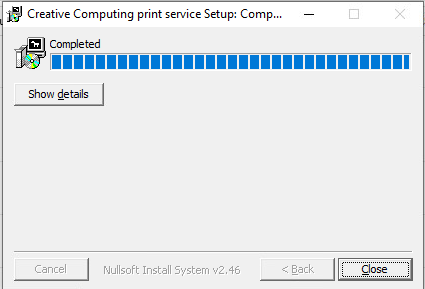
Click Close:
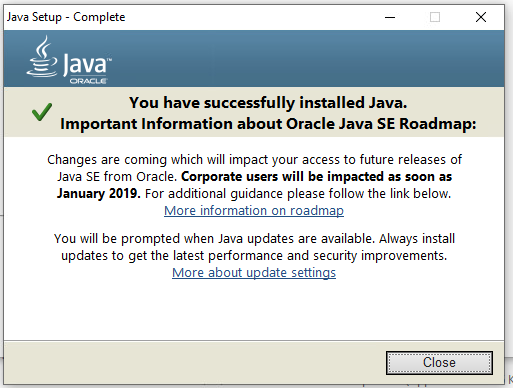
Program in installed.
Click on new "close" button:
You should see this shortcut on your desktop:
Screenshot from 2022-12-19 14-34-00.png

Double click on the icon. You would see something similar to the following screen:
Screenshot from 2022-12-19 15-32-01.png

Fill in the following:
Service URL: <supplied in separate email> (usually in the form customer_name.creativecomputing.com.au)
Service Env: <ccdir> (also supplied in separate email, usually in the form /u/cc<customer_name> )
Interval: 2
In the Control printers column, fill in the printer(s) supplied in your email. (you would get a list of control printers, usually these would be set up with self explanatory names during initial install.)
In the Local printers, you have to put the exact printer name for your local printers. This is how to locate them.
Click on the start menu, type in "control"
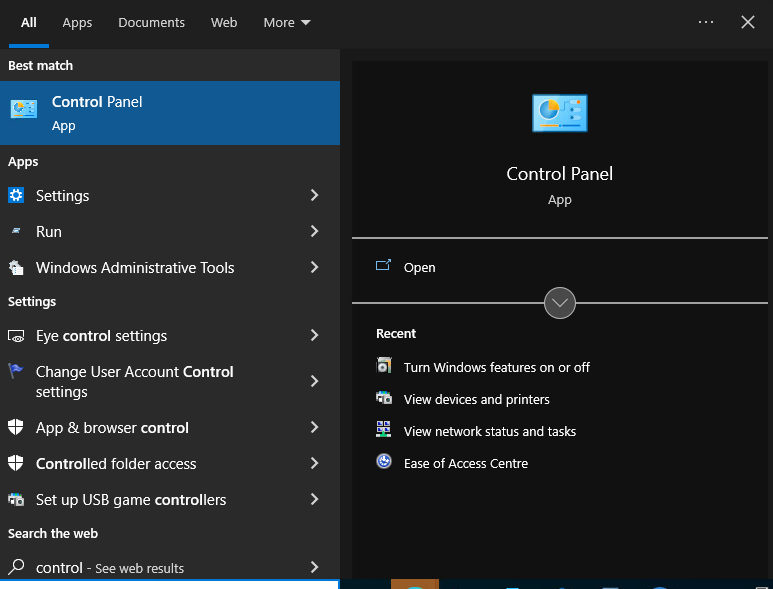
Choose "Control Panel" from the list:
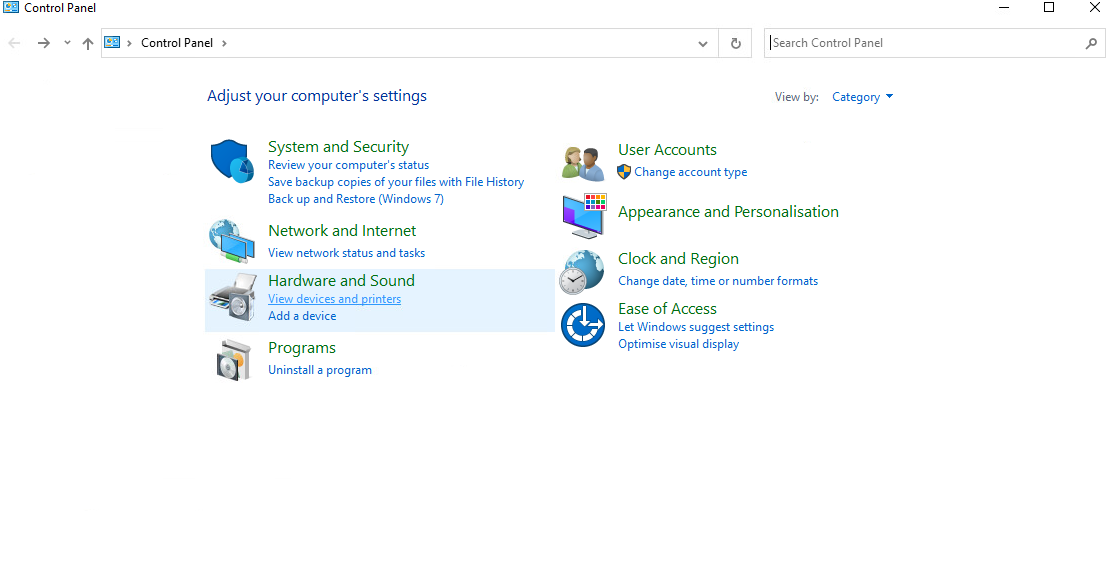
Click on "View Devices and Printers"
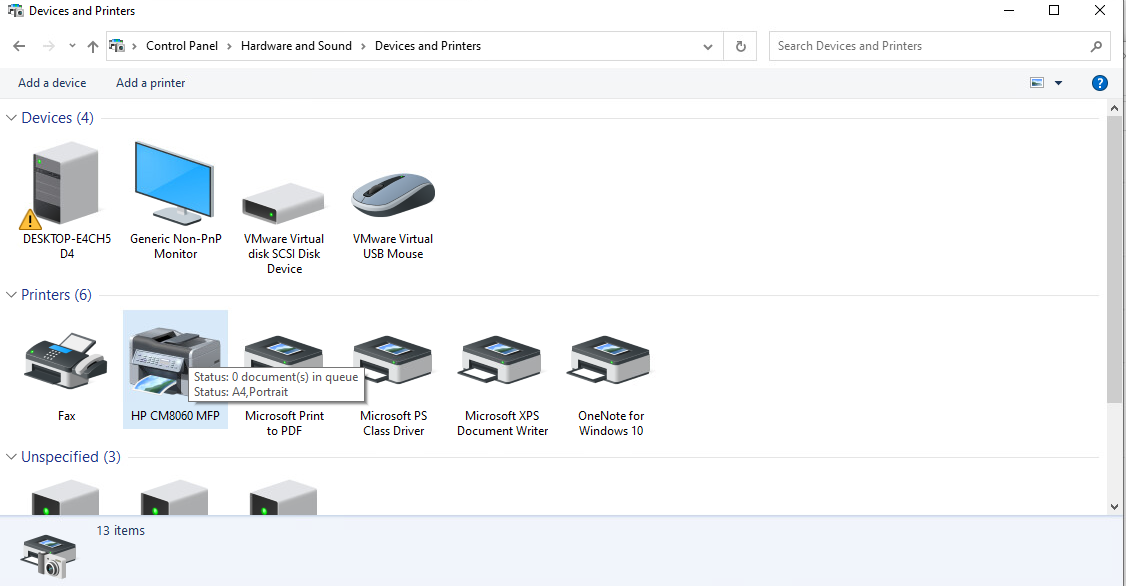
Locate your chosen printer that you successfully printed a windows test page with. Note the name. This is what you select from the Local Printers drop down list.