
Gwcox notes for digital camera setup
Digital Camera: Installation
- Do not connect the camera until the provided software is installed.
- Insert Canon Digital Solutions Disk into the system where the Camera will be physically connected to. Then select the greeen Install icon for Digital Camera Software.
Please wait while the InstallSheild Wizard begins. Once ready press Next to continue
Select Easy Installation as the type of prefered Setup followed by Next
- Press Yes to accept the Licence Agreement.
- Press Next to Start Copying Files
- Once the installtion is completed, select Yes to reboot and the system shall restart momentarily.
Digital Camera: CONTROL
- When connecting the camera to the computer, ensure that it is configured to Play Mode indicated by the blue play symbol on the back.
- Power on the camera, the first time it is connected will take a moment to install.
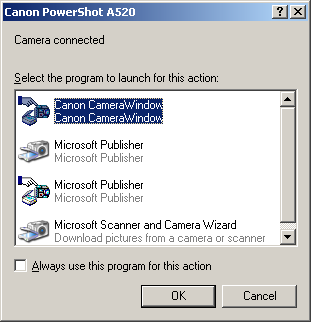
Windows XP users will be prompted with the following Canon PowerShot A520 Camera connected window. Within it select Canon CameraWindow and Always use this program for this action followed by OK.
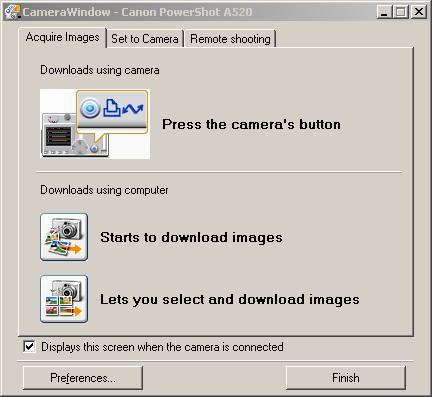
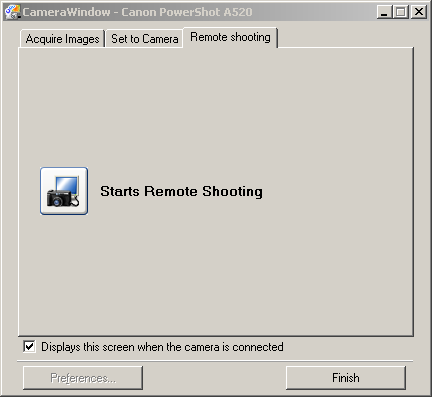
Doing the above will open the CameraWindow application, firstly select the Remote shooting tab followed by select the Starts Remote Shooting icon.
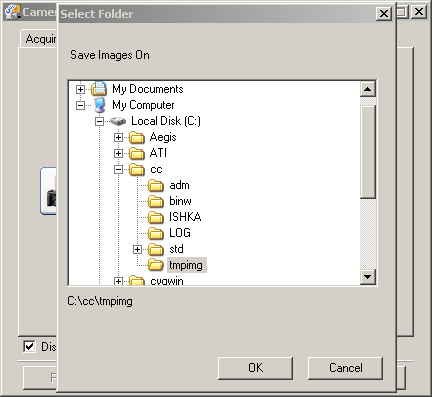
- The each time the Remote shooting program is run, a folder will need to be chosen to select where the images will be stored. This will be a temporary folder as any files in there will be cleared each time CONTROL is run. The users will be prompted to choose a directory each time they run the image capture program. This folder cannot be change and if it does not exist it must be created:
C:\cc\tmpimg
Ignore the Tip of the Day window by pressing Close
In a few moments the RemoteCaptureTask window will appear with a live feed of the viewfinder on screen.
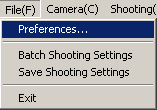
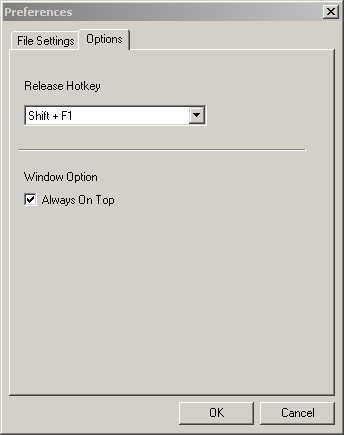
On initial configuration of RemoteCaptureTask select the File menu followed by Preferences . Moving to the Options tab, change Release Hotkey from F1 to Shift+F1 .
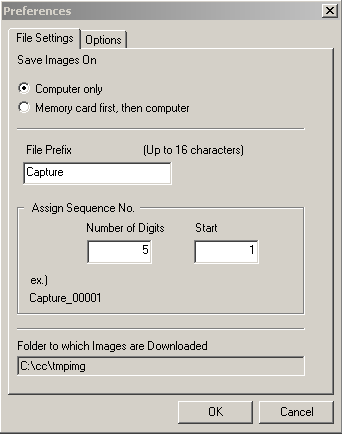
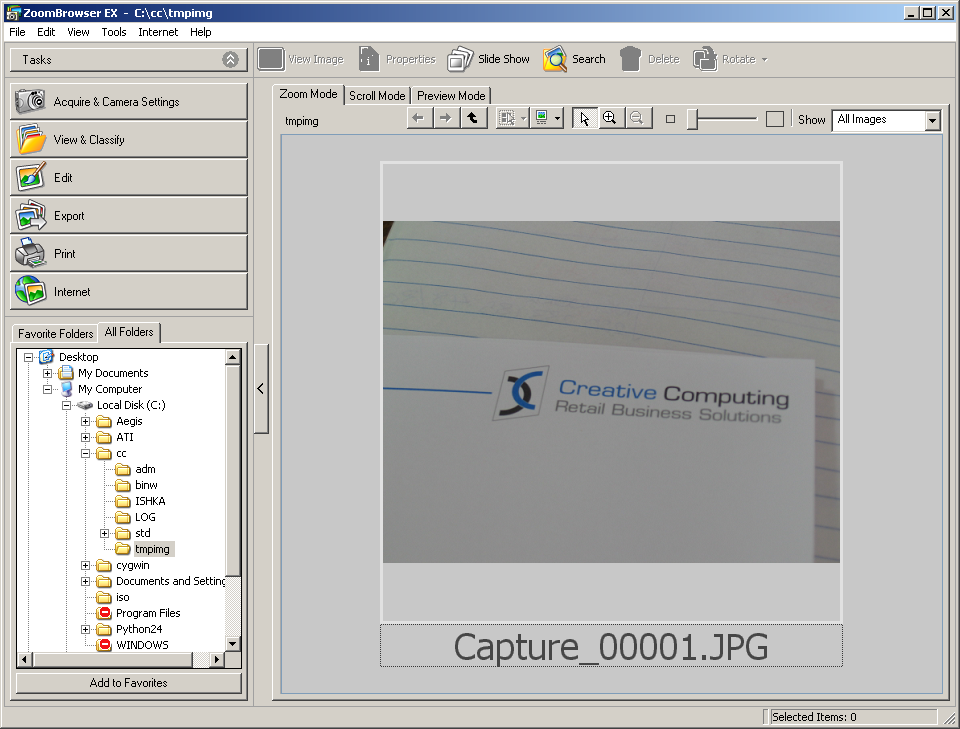
The Remote Capture application will maintain complete control over the camera. Including zoom, flash and capture. Press Release to capture/save an image. It will be saved as Capture_0001.JPG in ZoomBrowser EX application. CONTROL will not recognise any other filename.
- Once the image has been taken, the user should press OK in the steat window.
- The customer will need a custom version of the camera.exe program that has been modified with the default directories of where the images will be stored.
GW Cox Network
The City Store is also the head office, Marion is connected via a hardware IPSEC VPN. This was established for remote monitoring of there security systems. Further information about the VPN can be obtained from Simon Wei ( samwei@trakkar.com ) of DH Security on 08 8165 3400.
City Store
- Internal subnet: 192.168.1.0/24
- Public IP: 203.87.105.218 provided by Chariot
- Router: 192.168.1.1 (Netcomm)
- DCR: 192.168.1.99
Marion Store
- Internal subnet: 192.168.2.0/24
- Public IP: 58.105.226.175 provided by Optus
- Router: 192.168.2.1 (Billion)
- DVR: 192.168.2.99
Modbury
Not currently live.