
Installing VNC
Note: The addusr script will automatically do these for you if you specify that you want a new vnc session added.
Firstly ensure that vncserver is installed, package name is typically vnc-server . To ensure that VNC is always available and restarting if killed. It need to be added to inittab .
/etc/inittab
Add a line similar to the following to the mentioned file..
v5:345:off:/bin/su - ccc -c /usr/local/bin/inittab_vnc >> /var/log/vnc.ccc 2>&1
Note that this line is inactive as specified by off . Upon successful configuration this will be changed to respawn . Next inittab_vnc has be to installed, this is a perl script which must be modified each time a VNC session is added or removed. There is a copy stored locally on robin, alternatively a copy may be obtained from a client who recently started using VNC. Such as TJMBrisbane or VNC.
Once installed the array %displaymap is the only place where modification is required.
%displaymap = ( 'ccc' => 5, );
The above array shows that there is only one VNC session, available for the user ccc on display 5. Next a password for that user much be created. To accomplish this, you must switch to that user using su - ccc and execute vncpassword . This will create a password for the current user in the home directory. It would of greater benefit if the password file and the below mentioned xstartup be store in /etc/skel/.vnc/ so when a user is created the appropriate files are copied.
$HOME/.vnc/passwd
The inittab_vnc program depends on the user's home directory being in a specific location. Ensure that home directories are being correctly created. The default directory configuration must be set such that new users have correct paths in /etc/default/useradd.
GROUP=3232 # Non default value HOME=/u/cc/usr # Non default value INACTIVE=-1 EXPIRE= SHELL=/bin/bash SKEL=/etc/skel
Ensuring that the above is correct, the full path of the password will be as follows:
/u/cc/usr/ccc/.vnc/passwd
An xstartup script must be created in the same directory as the password file and executes the following commands upon the establishment of a session
#!/bin/sh . /u/cc/usr/common.sh export NODEID="vnc$DISPLAY" # exec /u/cc/std/binx11/ccmenubar exec fvwm To test the VNC session, execute the inittab_vnc as the user ccc . Then opening vncviewer for either Linux or Windows specify the machine's IP (likely VPN) address and session number which in this case is 5 after pressing connect you will be asked for a password.
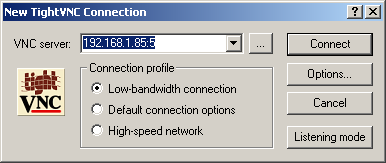
Lastly you should be connected. To ensure that inittab_vnc is run automatically edit the inittab file and replace off to respawn . This will allow the session to be started automatically. The parsing of inittab can be forced by executing the following:
/sbin/init q
To set up the VNC terminal on the client side, see: VNCTerminal
Create new VNC in CentOS6
Add new user to /u/ccr.14/usr/vncusers.sh advancing a number
#!/bin/bash USER[1]='jon' USER[2]='kafu' USER[3]='bernie' USER[4]='jenny' USER[5]='gaurav' USER[6]='boris'
Add new number to start up string ACTIVE_VNCSCREENS in /etc/init/start-xvncs.conf
Start new VNC session:
initctl start xvnc VNC=6
Setup VNC
When setting up VNC for replacement of guacamole. don't forget to:
1. set up a VPN connection. you did not do this for x2x_geogianna. Always use pptp vpn first and openvpn is a last resort. Don't forget to untick use default gateway.
http://customers.crecom.com.au/vnc/vnc-P5_0_5-x86_win32_viewer.zip
2. Always use the RealVNC 5.0.5 first. only tick scale to window size. remove the menu key. set shared to false.
if the connection flash in the begining, untick "adatpt to network speed" and use best network quality
3. Set up shortcut on the desktop. be sure you put the ccicon.ico file in the program files (x86)/RealVNC directory and not in the downloads directory.
3.1 to set up shortcut , first click save connection to a file.
3.2 open the file to using the vncviewer.exe.
3.3 short the the file to be on the desktop.
3.4 change the icon of the file to the control icon.